
Installing an SSL certificate in Enhance
Learn how to install an SSL certificate and private key in Enhance Control Panel.
Installing an SSL certificate in Enhance
Important!In many cases, you do not need to install an SSL certificate manually. For example, if you are using the free SSL certificate, it is installed automatically. Use this procedure only if you need to install an SSL certificate that you purchased from Verpex or another provider.
Install an SSL certificate
-
Log in to your Enhance control panel.
-
In the left sidebar, click Websites.

-
On the Manage websites page, click the website you want to manage.
-
Click the Security tab.

-
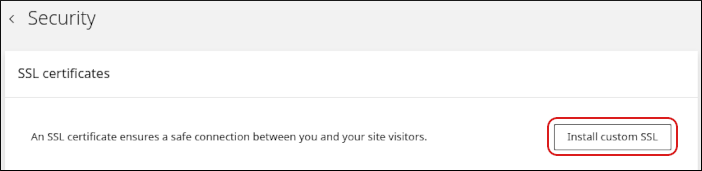
On the Security page, in the SSL certificates section, click Install custom SSL.
-
In the Domain list, select the domain where you want to install the SSL certificate.
-
In the Certificate (CRT) field, paste the certificate text. To upload the certificate file instead, click Upload file.
-
In the Private key field, paste the private key text. To upload the private key file instead, click Upload file.
-
Click Upload.
The Hosting Panel installs the certificate and private key for the selected domain.
Related articles
- Managing your WordPress site in Enhance
- Managing your Domains in Enhance
- Managing your Email in Enhance
- Using the File Manager in Enhance
- Managing Backups in Enhance
- Managing your MySQL databases in Enhance
- Managing FTP accounts in Enhance
- Changing PHP versions and settings in Enhance
- Configuring SSH access in Enhance