
From cPanel to Enhance. Everything you need to know.
You've just been moved onto Enhance — our modern control panel platform. Everything you're used to doing in WHM and cPanel, you can still do here. Often faster. Usually cleaner. And with features cPanel simply doesn't have. This is your translation guide.
❓ FAQ
Common questions about Enhance reseller hosting. Read more →
👤 Adding Customers
How to add a new customer to your Enhance account. Read more →
🌐 WordPress Management
Managing your WordPress site in the Enhance control panel. Read more →
Enhance is built for today's hosting professional. It's quicker, more intuitive, and gives you tools that cPanel doesn't — like self-service site imports, built-in Cloudflare syncing, one-click WordPress during site creation, and real-time Slack notifications for your business.
There's a short familiarization period, as with any new tool. Most resellers are running comfortably within a day. This guide walks you through the key differences so you can hit the ground running.
Terminology
The language has changed slightly.
| Old | New |
|---|---|
| Primary Panel Your reseller-level control panel | |
| Customers The accounts that sit under your Primary Panel | |
| Packages Same name, same concept — no change here | |
| Impersonate How you access a customer's control panel |
Packages
Create your packages first.
In both panels, you'll want to create your packages before onboarding customers, so you have something to assign when they arrive.
Packages in Enhance let you define disk space, bandwidth, number of websites, email accounts, databases, and a range of feature toggles — all in one cleanly laid-out screen.
The Big One
Adding a new customer is three steps, not one.
This is the day-to-day task you'll run most often, and it's the biggest structural difference between cPanel and Enhance — so pay close attention here.
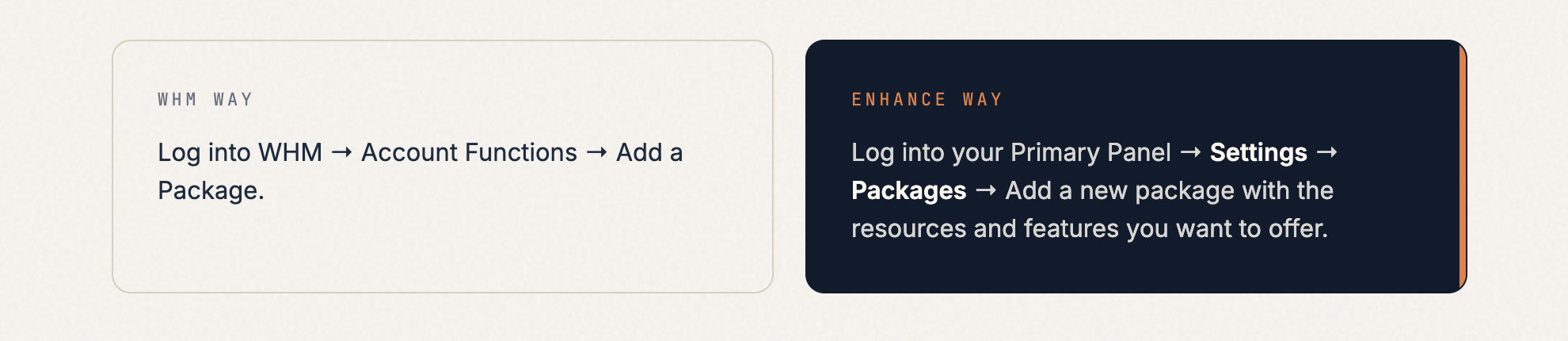
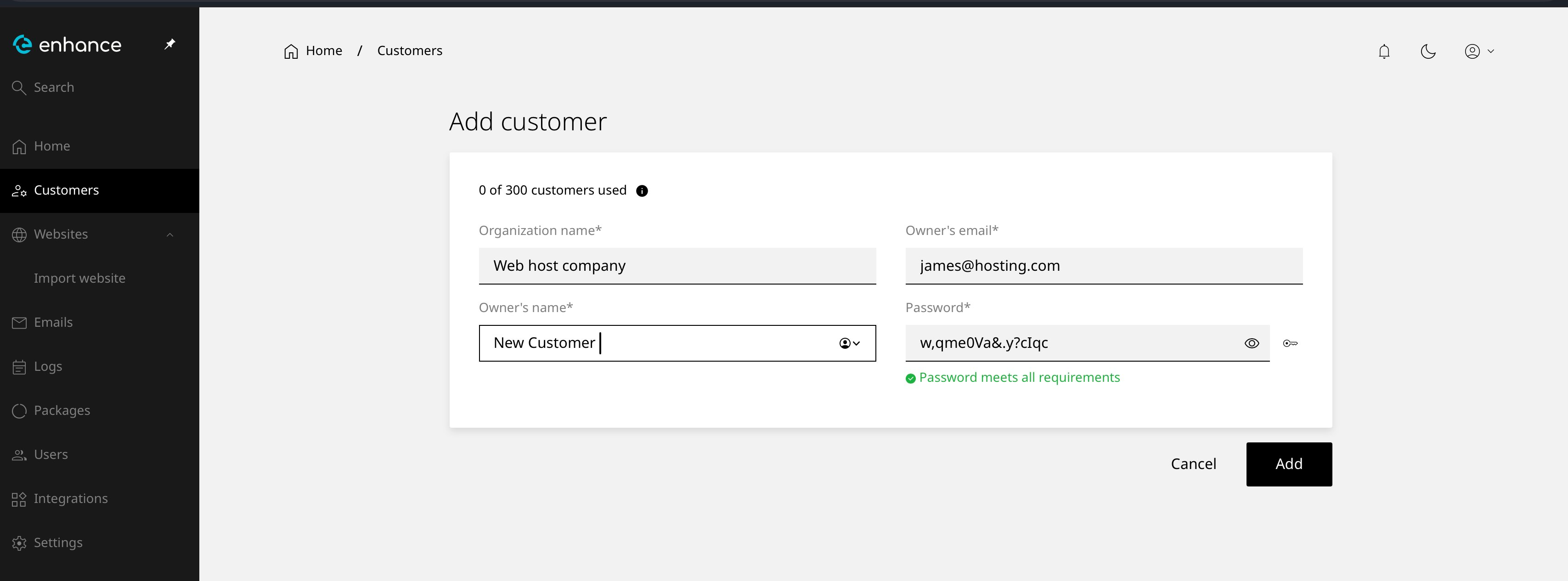
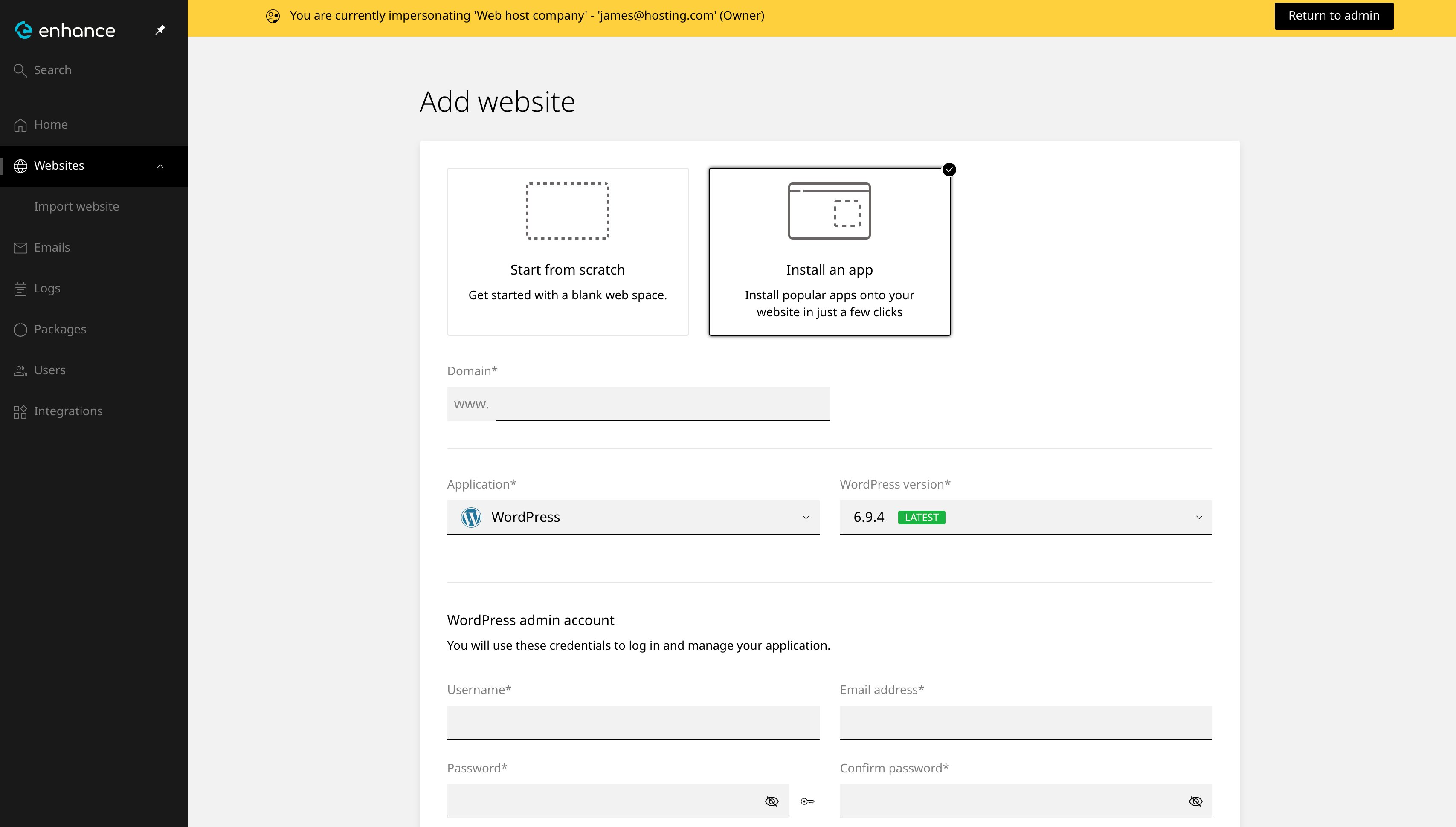
In WHM, creating a new account was a single form: domain, password, package, Create, done. In Enhance, this is broken into three separate steps. It feels like more work at first, but it's actually more flexible — you can onboard a customer before they've picked a domain, change packages independently, and add additional websites under the same customer later without any extra setup.
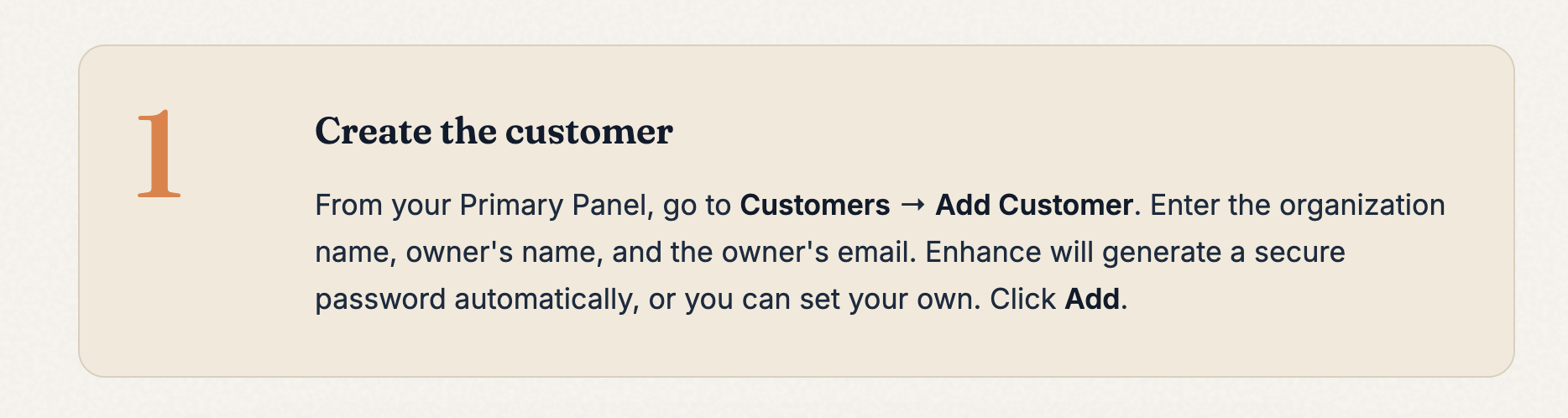
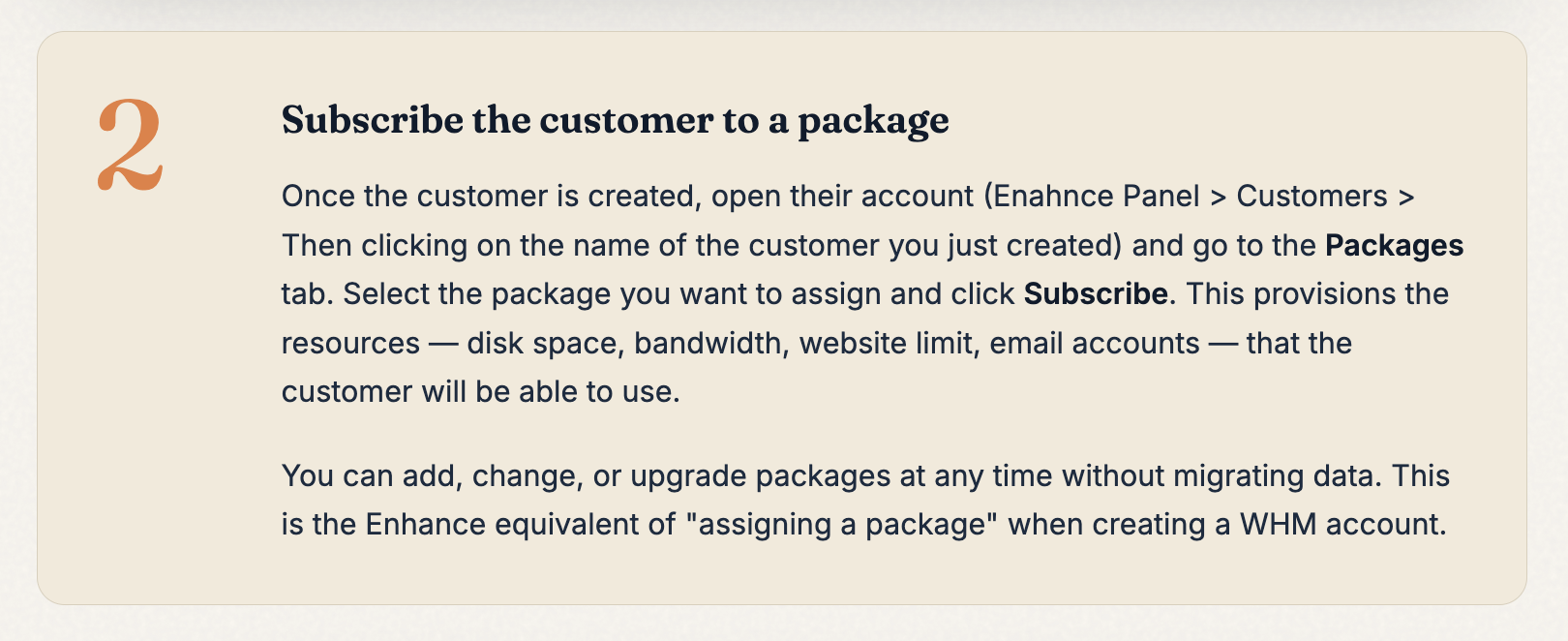
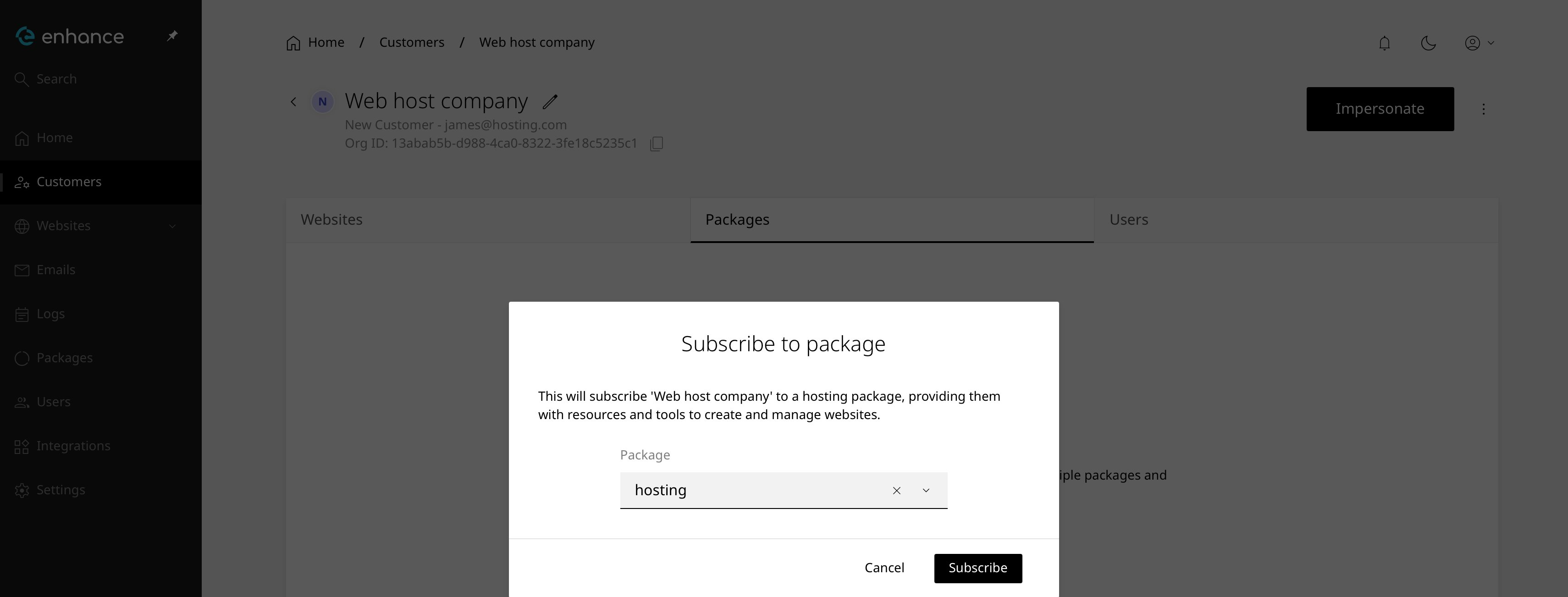
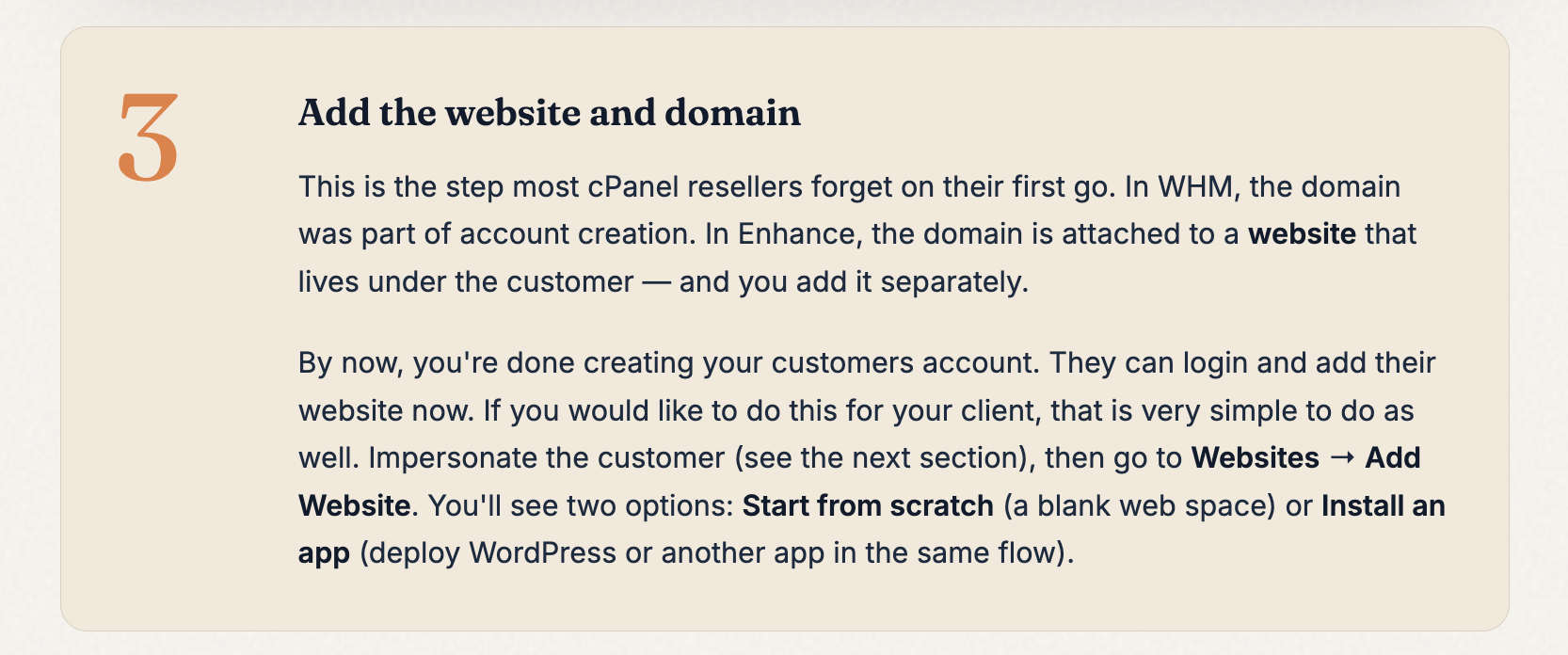
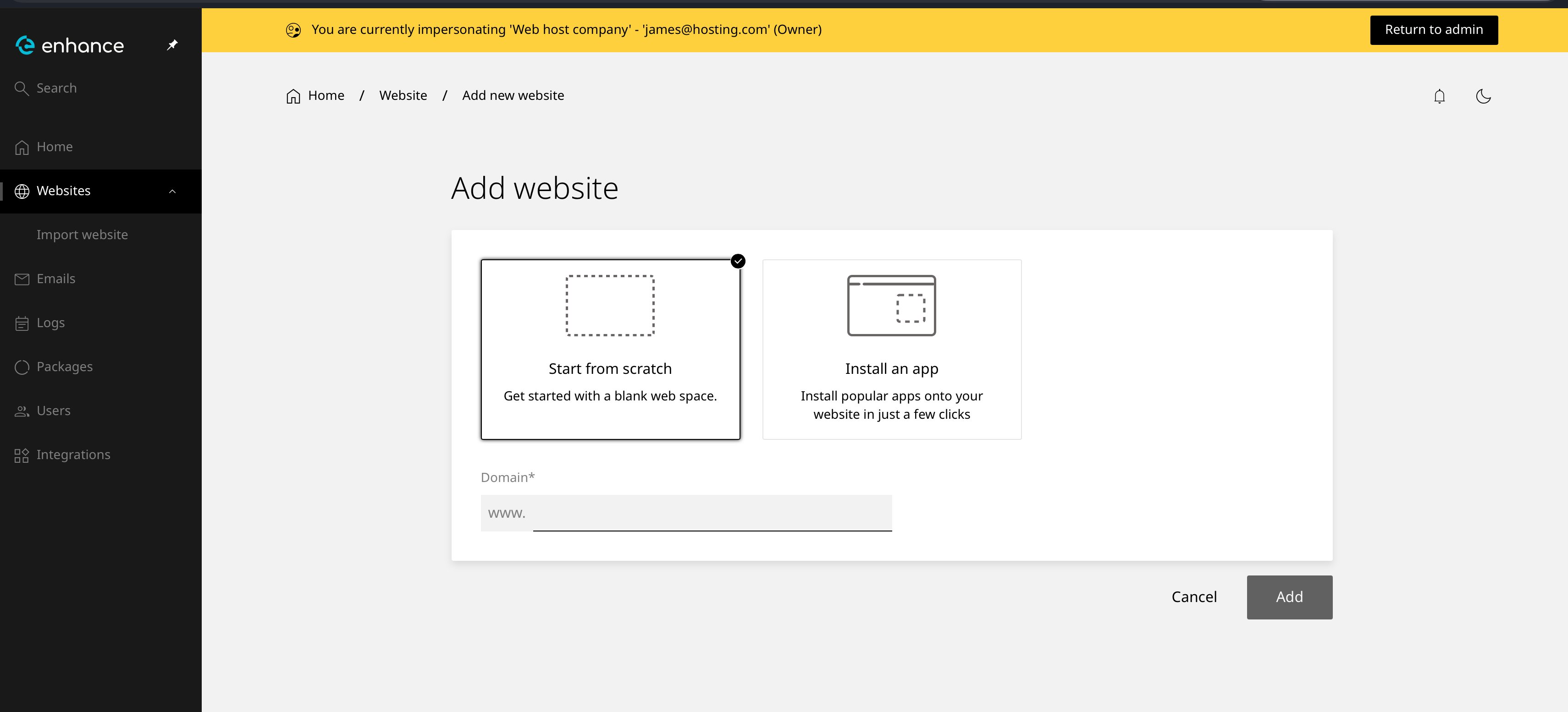
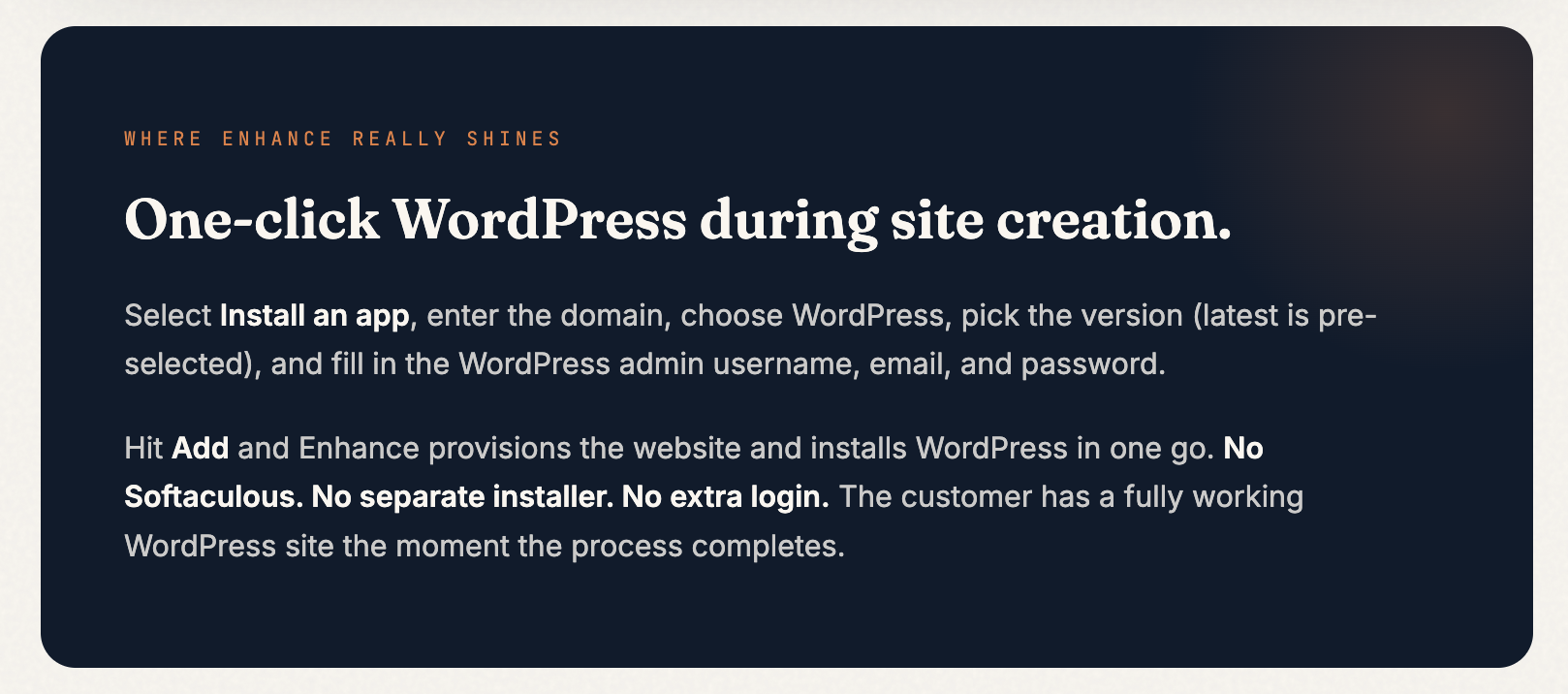
TipIf you're onboarding a client who doesn't have their domain registered yet, you can skip Step 3 entirely for now. The customer and package are ready, and you can come back and add the website whenever the domain is live. Or hand off login details to the client so they can add their own website.
Impersonation
Accessing a customer's control panel.
When you need to log into a customer's account to install WordPress, set up email, check files, or troubleshoot — this is the Enhance equivalent of clicking the little orange cPanel logo in WHM.
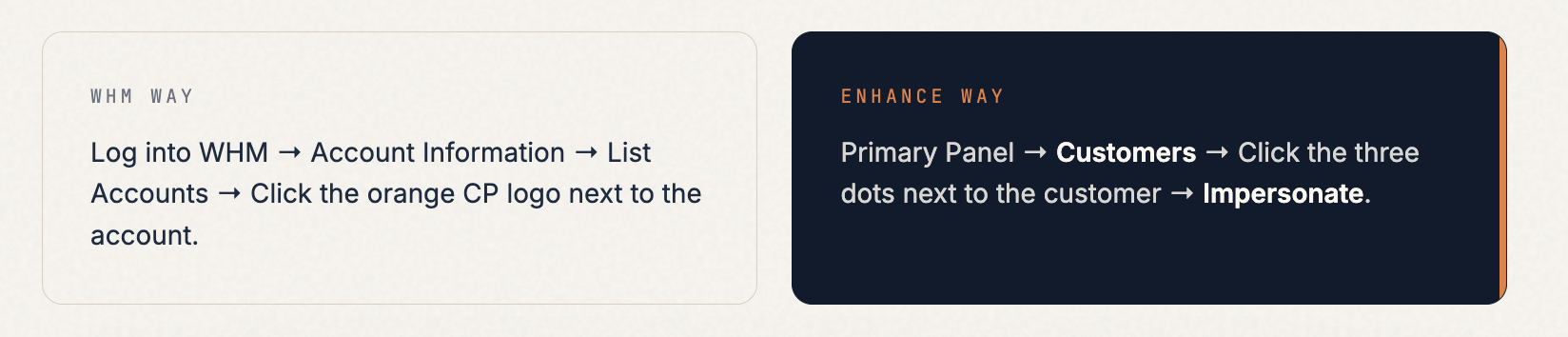
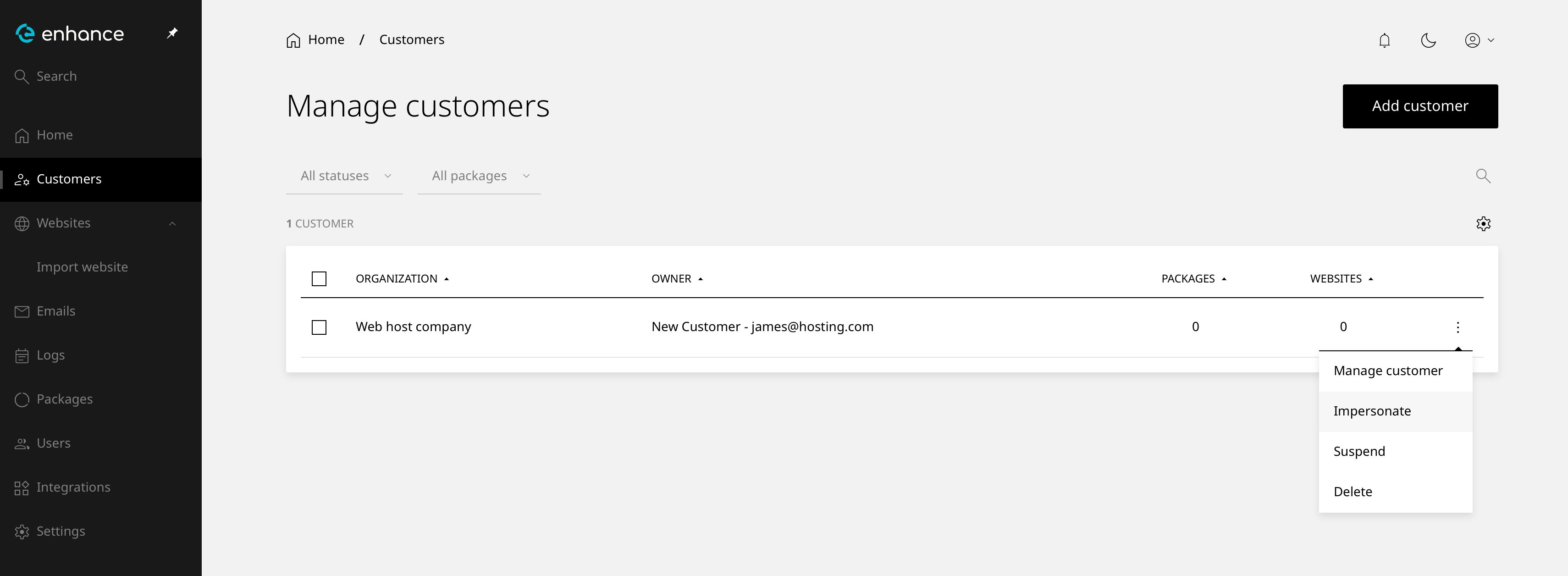
Once you impersonate, you'll see a yellow banner across the top of the screen confirming you're inside the customer's account. A Return to Admin button in the top-right takes you back to your Primary Panel whenever you're done.
Client Access Important
Setting up your customers' login URL.
In cPanel, your customers accessed their accounts via port 2083 (e.g. yourdomain.com:2083) or a redirect to /cpanel.
In Enhance, there are no port-based logins or redirects. Instead, you set a branded control panel URL that your customers use to log in — giving your hosting business a more professional appearance from day one.
To set this up:
Log into your Enhance Primary Panel → Settings → Platform → Control Panel Domain Here you'll specify the URL your customers will use to access their panel — for example cp.yourdomain.com. You'll need to point this domain's DNS to your server before it will work. Once set, your customers visit that URL and log in with the username and password you assigned when creating their customer account.
TipIf you haven't set a control panel domain yet, your customers won't have a URL to log into. Set this up before onboarding your first customer so the experience is seamless from the start.
Daily Operations
Files, email, databases & everything else.
Once you're impersonating a customer, the left-hand menu gives you everything the customer themselves would see — and it's where you'll do most of the day-to-day work a cPanel technician does.
- Websites — Add websites, install WordPress, manage SSL, set PHP versions, and access the file manager for each site.
- Emails — Create and manage email accounts, forwarders, and aliases.
- Logs — Access server and website logs for debugging and audit.
- Packages — View package resources and limits.
- Users — Manage additional users with access to this customer's account.
- Integrations — Connect Cloudflare, Slack, and other services.
Heads upEverything you used to click through the cPanel icons for is here, just organised into clearer sections.
Self-Service Imports
Bring your old sites over yourself.
This is one of the biggest benefits in Enhance and something we want to highlight specifically.
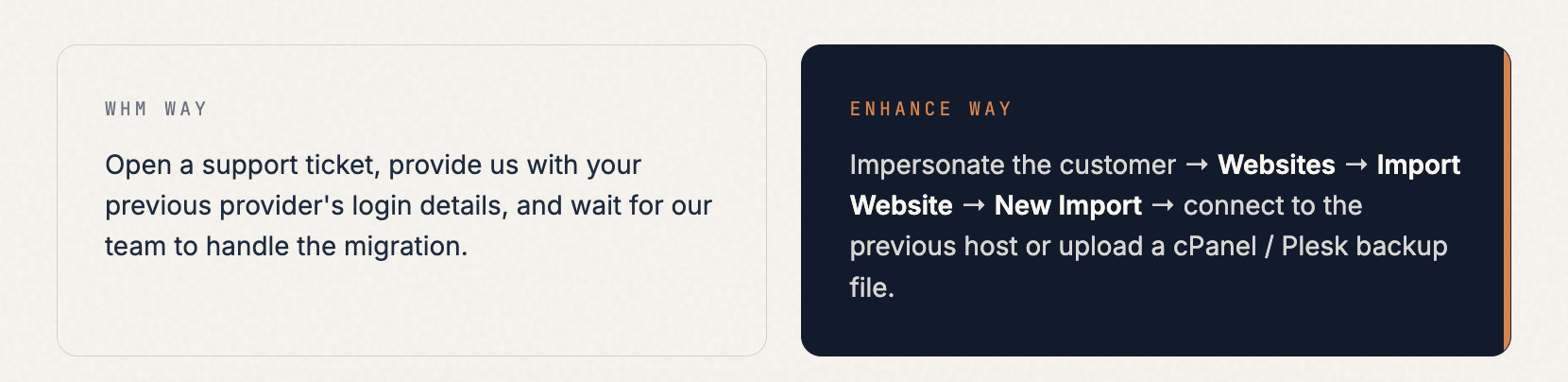
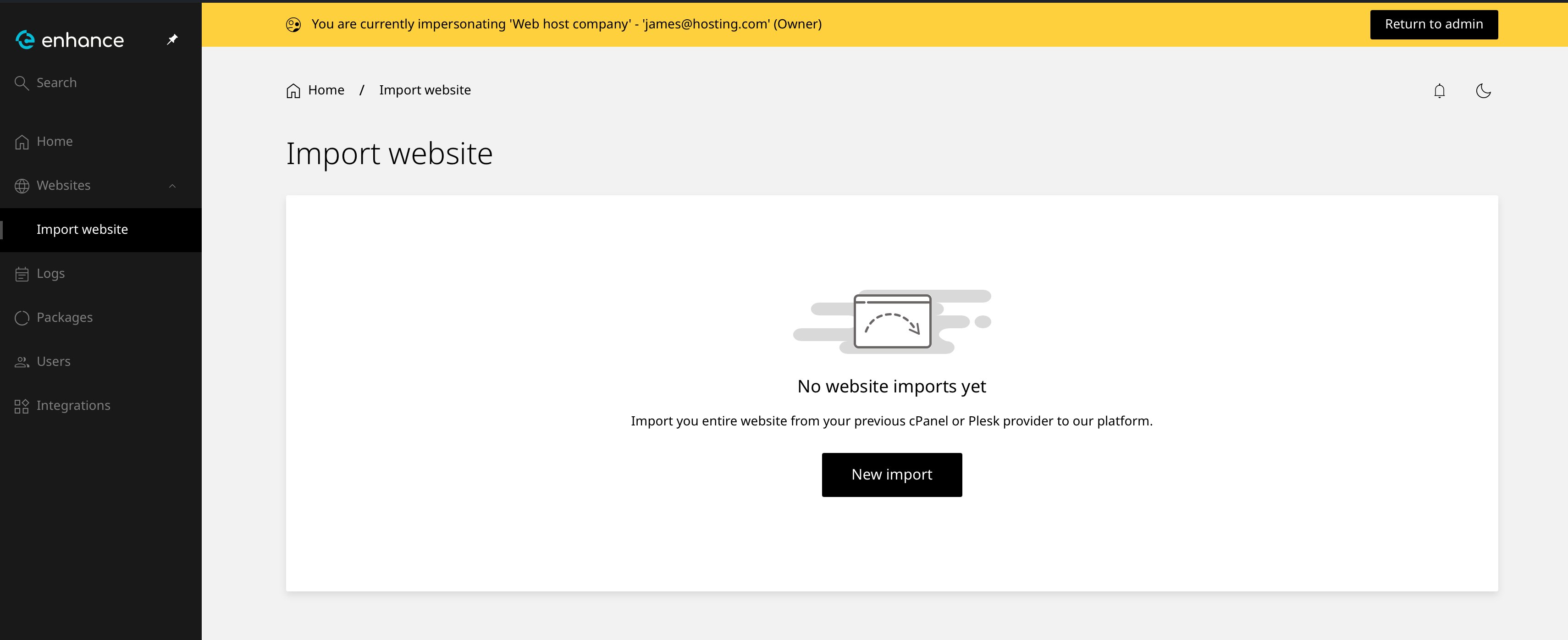
The entire site — files, databases, emails, DNS — is brought over automatically. No ticket, no waiting, no back-and-forth. For larger or more complex migrations, our support team is still here and can handle the full white-glove migration for you if you prefer.
When You Need Us
We're here.
If something isn't behaving the way you expect, or you can't find the equivalent of a cPanel feature you rely on — don't struggle with it.
- Open a support ticket from your client area. Our team is fluent in both panels and can walk you through the cPanel-to-Enhance equivalent of anything.
- For migration help specifically, open a ticket and our migrations team will take it from there for you.