
Changing PHP versions and settings in Enhance
Learn how to change the PHP version and settings from one convenient interface in Enhance Control Panel.
Changing the PHP version
To change the active PHP version, follow these steps:
- Log in to your Enhance control panel.
- In the left sidebar, click Websites:

-
On the Manage websites page, click the website you want to manage.
-
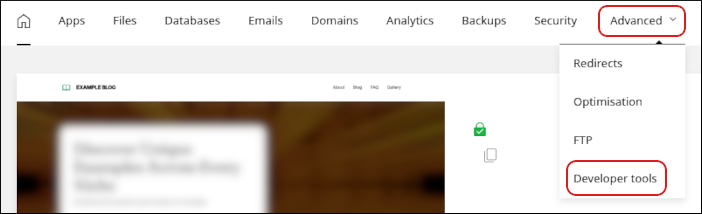
A list of tabs appears at the top of the page. Click the Advanced tab, and then click Developer tools:
-
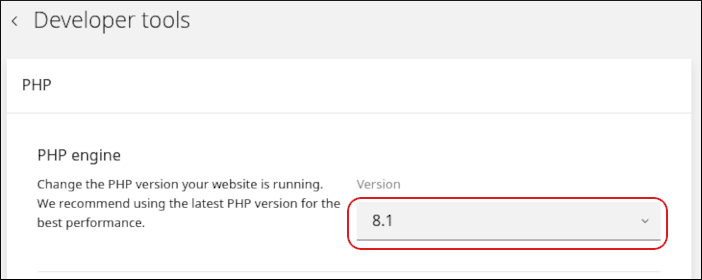
In the PHP section, in the Version list box, select the PHP version you want to use for your site:
-
Click Update.
ImportantMake sure the new PHP version is compatible with any applications you are running. Otherwise, your website may not work correctly.
Changing PHP settings
You can change php.ini directives to customize your PHP environment. To do this, follow these steps:
- Log in to your Enhance control panel.
- In the left sidebar, click Websites:
-
On the Manage websites page, click the website you want to manage.
-
A list of tabs appears at the top of the page. Click the Advanced tab, and then click Developer tools:
-
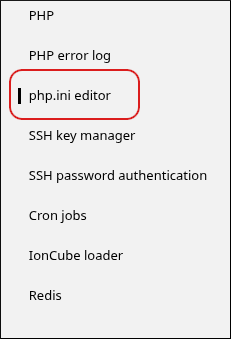
In the sidebar, click php.ini editor:
-
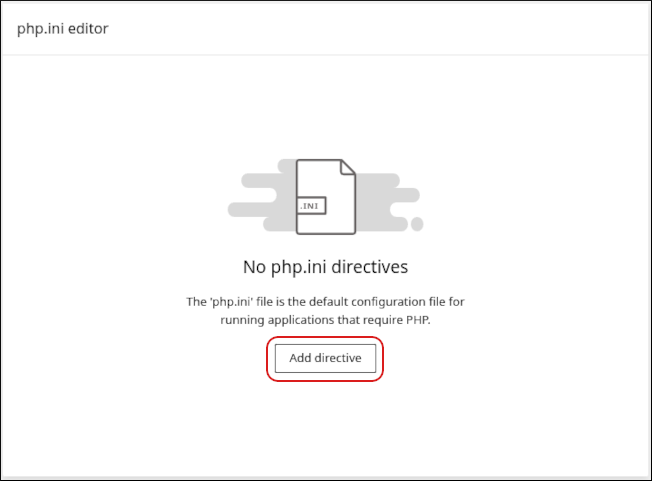
In the php.ini editor section, click Add directive:
-
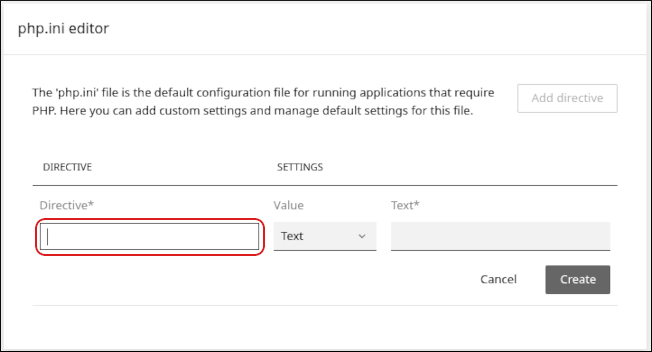
In the Directive text box, type the name of the directive you want to configure:
-
In the Value list box, select Text or Boolean:
- For a text value, type the value in the Text text box.
- For a boolean value, click Enable or Disable.
-
Click Create. The directive appears in the list of configured directives.
-
To make the new php.ini settings take effect, follow these steps:
- In the left sidebar, click PHP.
- In the Restart PHP container section, click Restart.
Related articles
- Managing your WordPress site in Enhance
- Installing an SSL certificate in Enhance
- Managing your Domains in Enhance
- Managing your Email in Enhance
- Using the File Manager in Enhance
- Managing Backups in Enhance
- Managing your MySQL databases in Enhance
- Managing FTP accounts in Enhance
- Configuring SSH access in Enhance