

- Log into your WordPress dashboard
- Go to Media > Add New.
- Click on the “Select Files” button to upload files from your computer. You can also drag and drop files into the upload area.
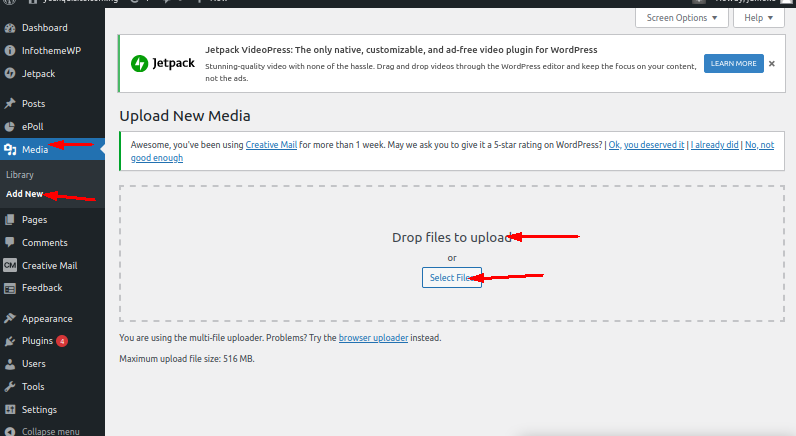
- Once the files are uploaded, you can edit the file details, such as the title, caption, and description.
- Click “Insert into post” to add the file to a post or page, or click “Save” to save the file to the media library.
- In your WordPress Dashboard
- Click Posts >Add New Post
- On the Upload menu, click The Add media files from your computer page will appear.
- Click the Select Files button.
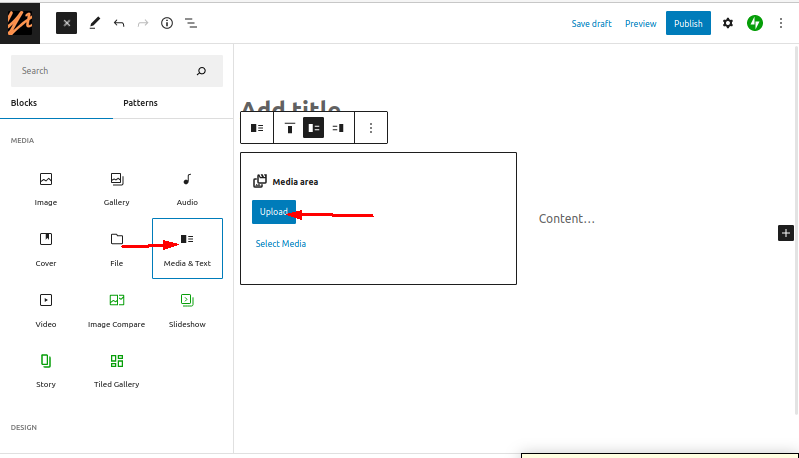
There are two possible editing interfaces that you may be working on: the Classic Editor and the Gutenberg Block Editor. Classic Editor
- While editing a post, click the Add Media button to add a media image
- Select the Upload Files tab
- You can drag files from your computer or click on the Select Files button to open up a file browser
- If you’re not ready to use the files now, simply make to uncheck the files. The files will still be there to be used in the future
- Open the post editor
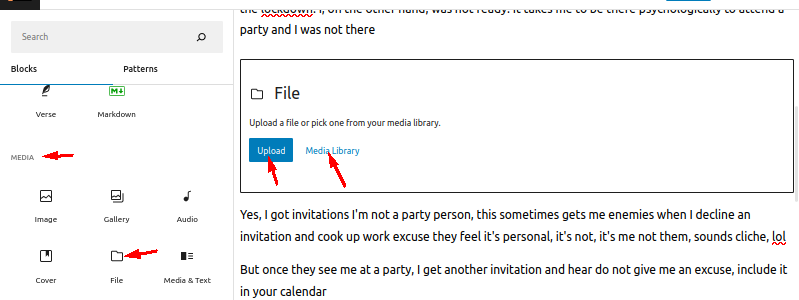
- Click one of the plus buttons
- Find the File block and click it
- You’ll see a file block appear in the post body. You can drag files from your computer, or click on Upload or Media Library