

- Log into your hosting account from your client area
- Go to Softaculous App Installer
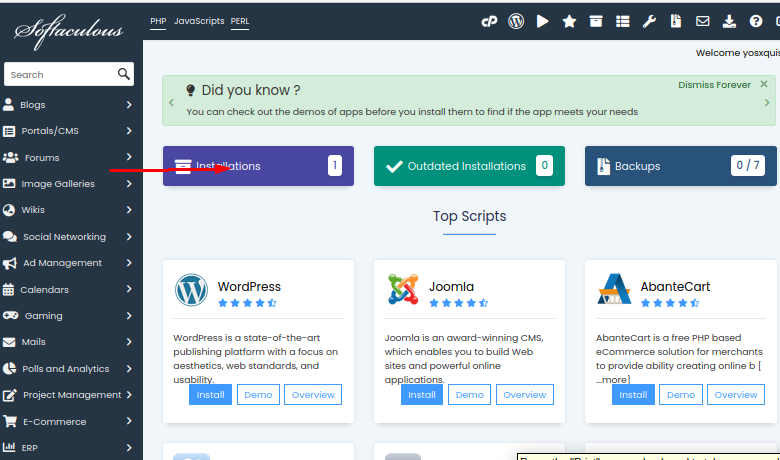
- Select the WordPress website you wish to delete from your current installation
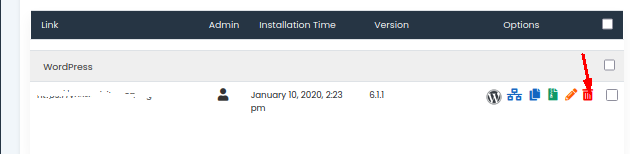
- Click the dustbin icon in front of the WordPress installation you wish to delete and delete
- You will see a pop-up window confirming that you would like to delete your WordPress site, click yes to proceed
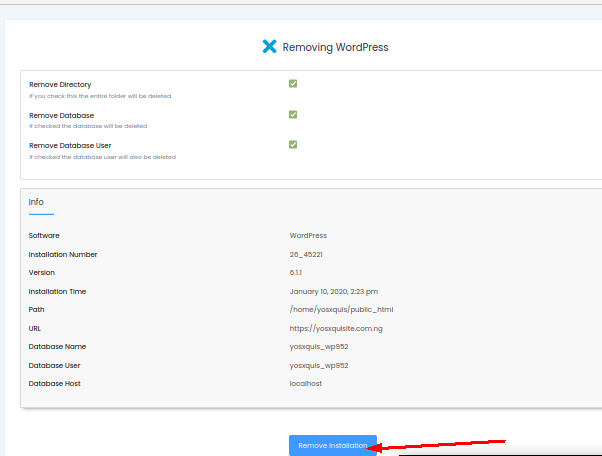
- You just successfully deleted your WordPress
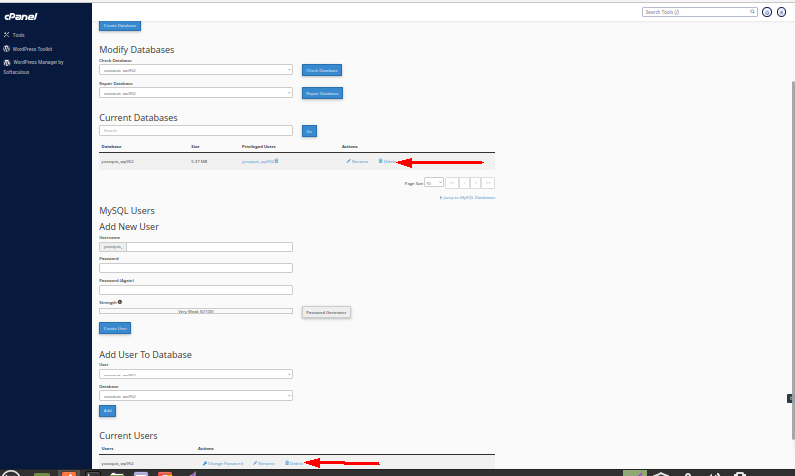
From within your cPanel click on MySQL Databases
This displays a list of databases, select the database of the site that you have already deleted WordPress installation
Delete the database and the user associated with it.
You can permanently and completely delete your WordPress.com site by following the steps below. WordPress.com provides support for site deletions that have been accidentally deleted or changed of mind. It’s possible to revert the site deletion within 30 days of deleting it. Your site will disappear forever if you don’t.
- Click Tools on your WordPress.com website’s dashboard.
- Select to delete a site
- You will be offered the option of backing up your content.
- Enter the name of the WordPress website you wish to delete.
- Click to Delete This Site.
- Now login to your WordPress.com Dashboard
- And click My Websites > Settings.
- Scroll down and click to permanently delete your site.
- Go to WordPress Manager by Softaculus
- Click ‘Scan’
- Then, click delete button on the website that you want to delete