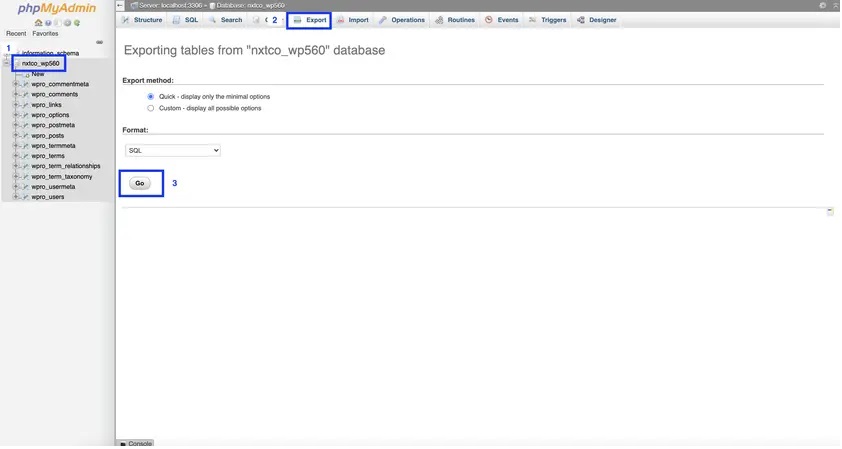
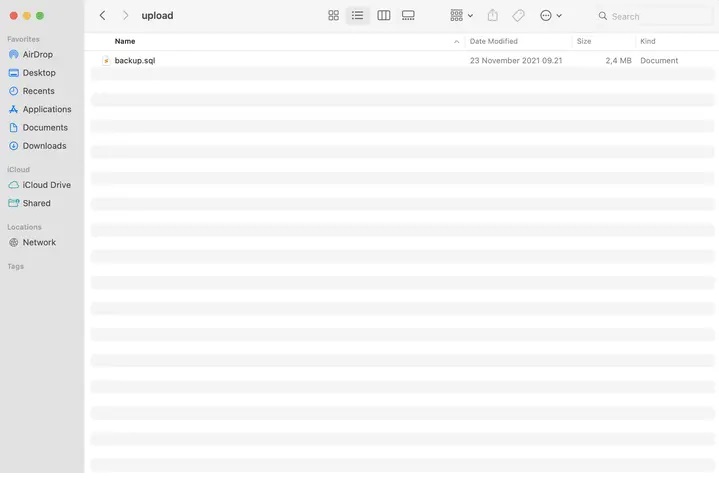
How to Export and Import MySQL Through phpMyAdmin Exporting To export an existing MySQL database using phpMyAdmin, make sure you are logged in to your cPanel area first. Once you’re in, type phpMyAdmin on the top right search bar and click on the option shown:


How to Export and Import MySQL Through SSH command line Note: To export and import MySQL via the command line, the cPanel SSH access must be enabled. Make sure you do know basic SSH commands to login to your server via Terminal or PuTTY. You will also need to have the database credentials such as the database name, user, and password.
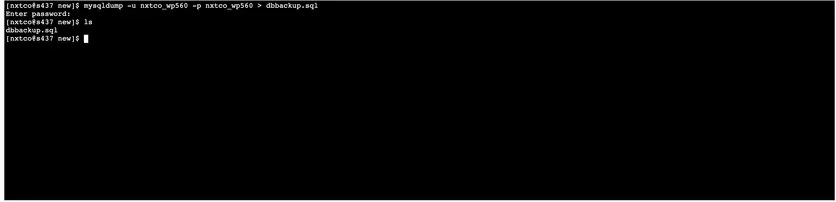
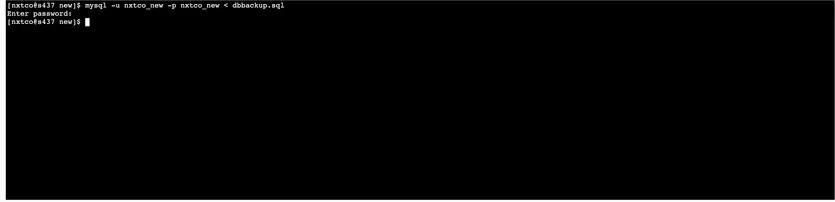
Exporting First, open your terminal or PuTTY and login to your hosting account. Once logged in, navigate to the directory where you wish the SQL database to be exported and type in this command below: mysqldump -u DBUSERNAME -p DBNAME > dbbackup.sql Make sure to replace the DBUSERNAME with the correct database username and DBNAME with the correct database name. Here’s the breakdown of the command: mysqldump is the initial command to export the MySql database. -u clarifies the username of MySQL database -p specifies the need to use the database password dbbackup.sql : the result of the export After typing the command above, you will then be asked to enter the database password. If the password is correct, the export progress will start. Once finished, type in the command ls and the dbbackup.sql should be visible. Here’s a screenshot taken from Terminal for reference: