

How Cron Jobs Work A Cron Job is made of three parts:
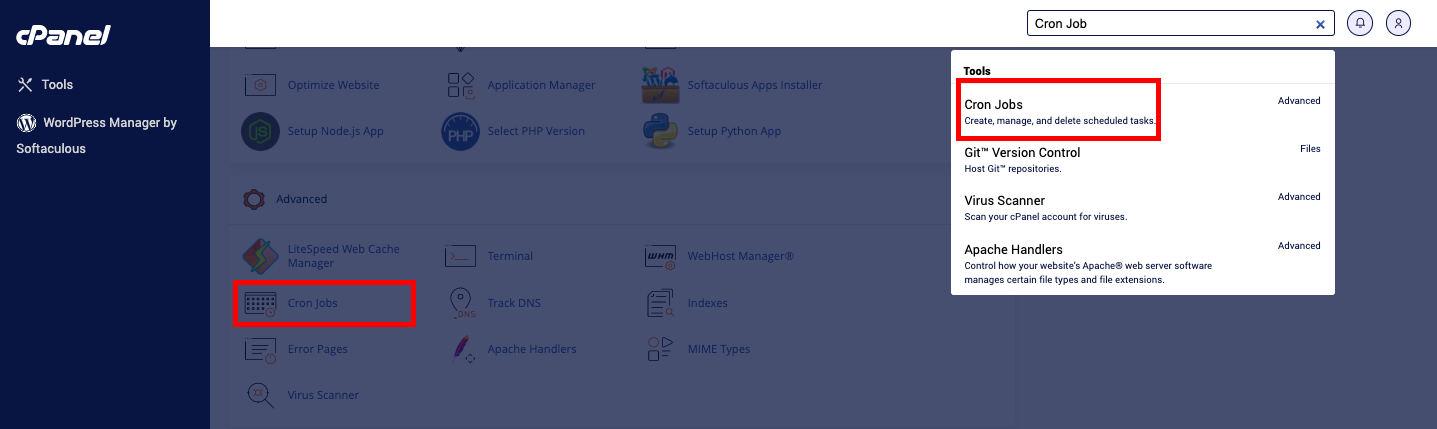
- Once you’re logged in, under ‘Advanced’ in cPanel, select ‘Cron Jobs’ or type in ‘Cron Jobs’ on the top right Search bar.
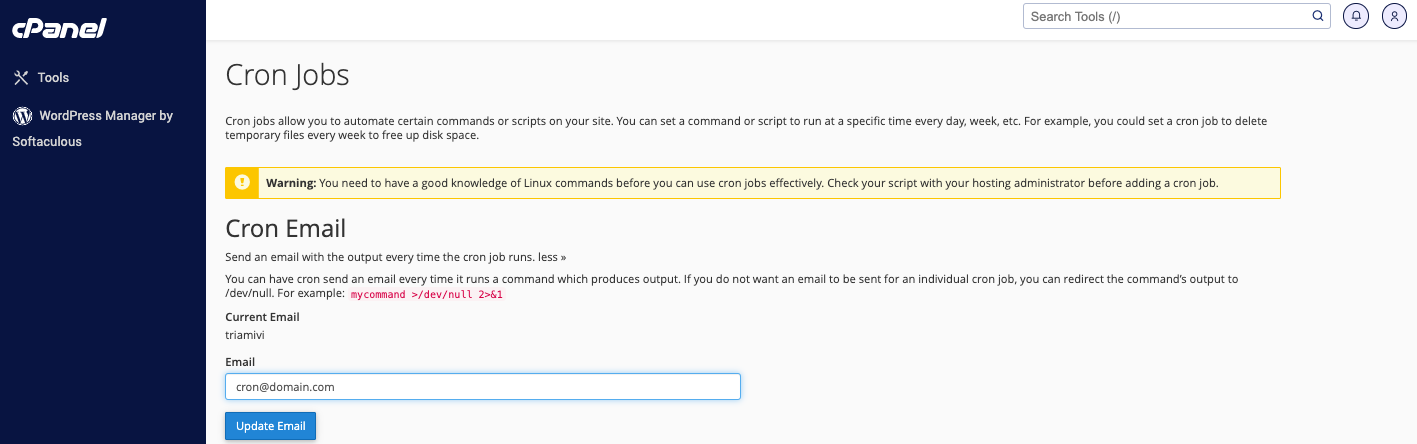
- For the next section, pick ‘Cron Email’, if you wish to get a report email every time the cron job runs. Then enter or confirm your existing, working email address (by default it uses the cPanel user email address).
- In ‘Add New Cron Job’ > ‘Common Settings’, ensure that all settings meet your requirements
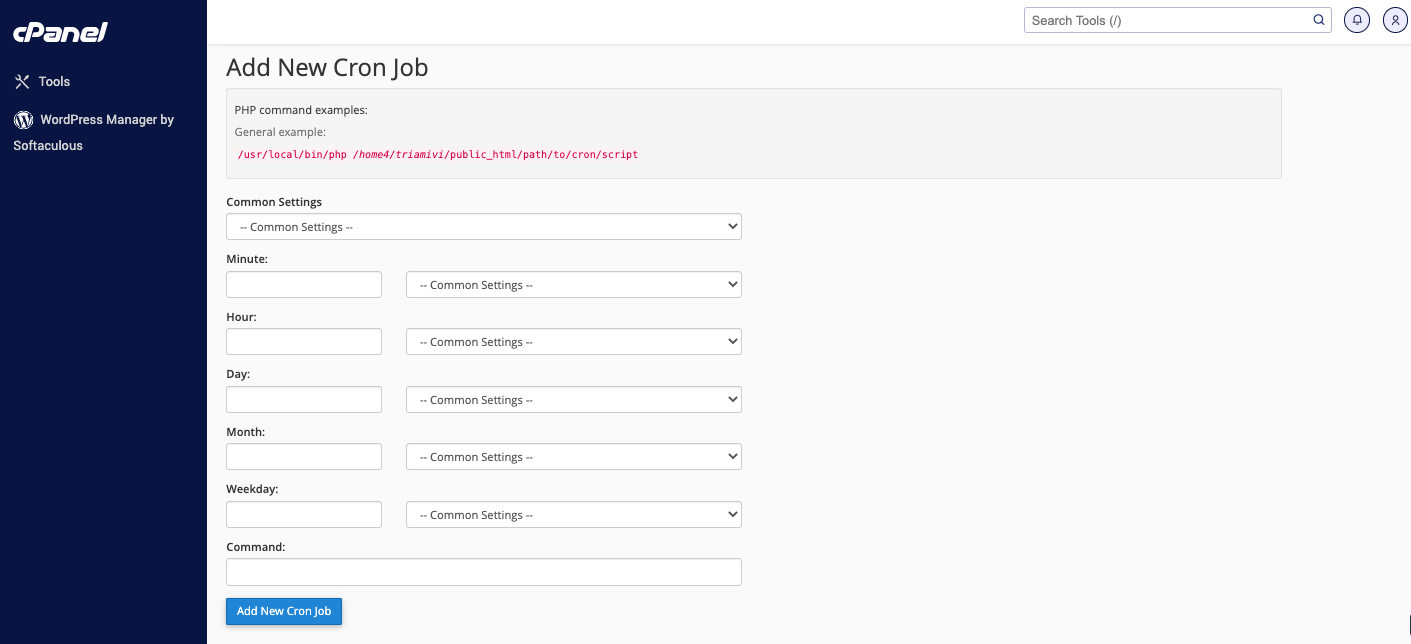
- You can choose specific time parameters for your Cron to run – from month all the way to minute.
- n ‘Command’, enter the command that you’d like to run as a Cron Job.
- That’s it. Just ‘Add New Cron Job’, and it will be added.
- Any such process will initially use the home directory to run.
- Since Cron processes do not generate an interactive command line, startup files like bashrc will not be accessed.
- If we name an executable file without a full path – either absolute or relative - the process will expect it to be in the ’bin’ and ‘usr/bin’ paths alone.
- For any script, the interpreter’s location can be provided in one of two ways - a full path in a proper #! format or in the shell interface.
- All file locations must have full paths – absolute or relative, again.