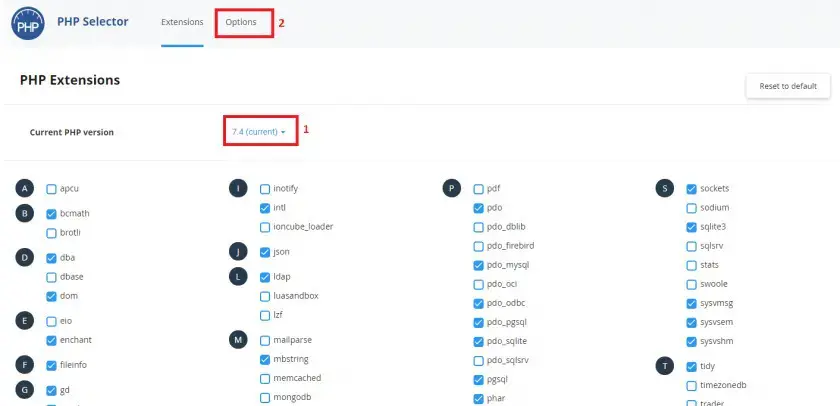
Changing Your PHP Version Firstly, go into your account on cPanel and navigate to the Software Tab, in which you will find the Select PHP Version tool. Here, you can select the PHP version that your website requires. Once you’ve selected the version you need, you can press Set as current. Below, you will see the modules that are available for this precise PHP version that you’re running at the moment. In order for your website to work without any issues, you can disable or enable them as you need. At the top, you’ll find the Options tab where the PHP settings can be changed, such as upload_max_filesize, max_execution_time, memory_limit, and so on. Below, we will go over the options that you will be tweaking in most cases.
- upload_max_size – To adjust the maximum upload file size that should be supported on your site, you can adjust this value. For example, you might need to tweak this value if you are uploading a large MySQL database.
- post_max_size – This value is the most common in web forms, and it shows the maximum value that can be accepted by GET and POST variables.
- max_execution_time – This value can be set to a higher limit if that is something that you need, and it shows the maximum execution time that a script should run.
- display_errors – If you change this value to ‘On’ since it is set on ‘Off’ by default, your browser will show errors on PHP scripts.