

- Login to your accounts cPanel from your client area
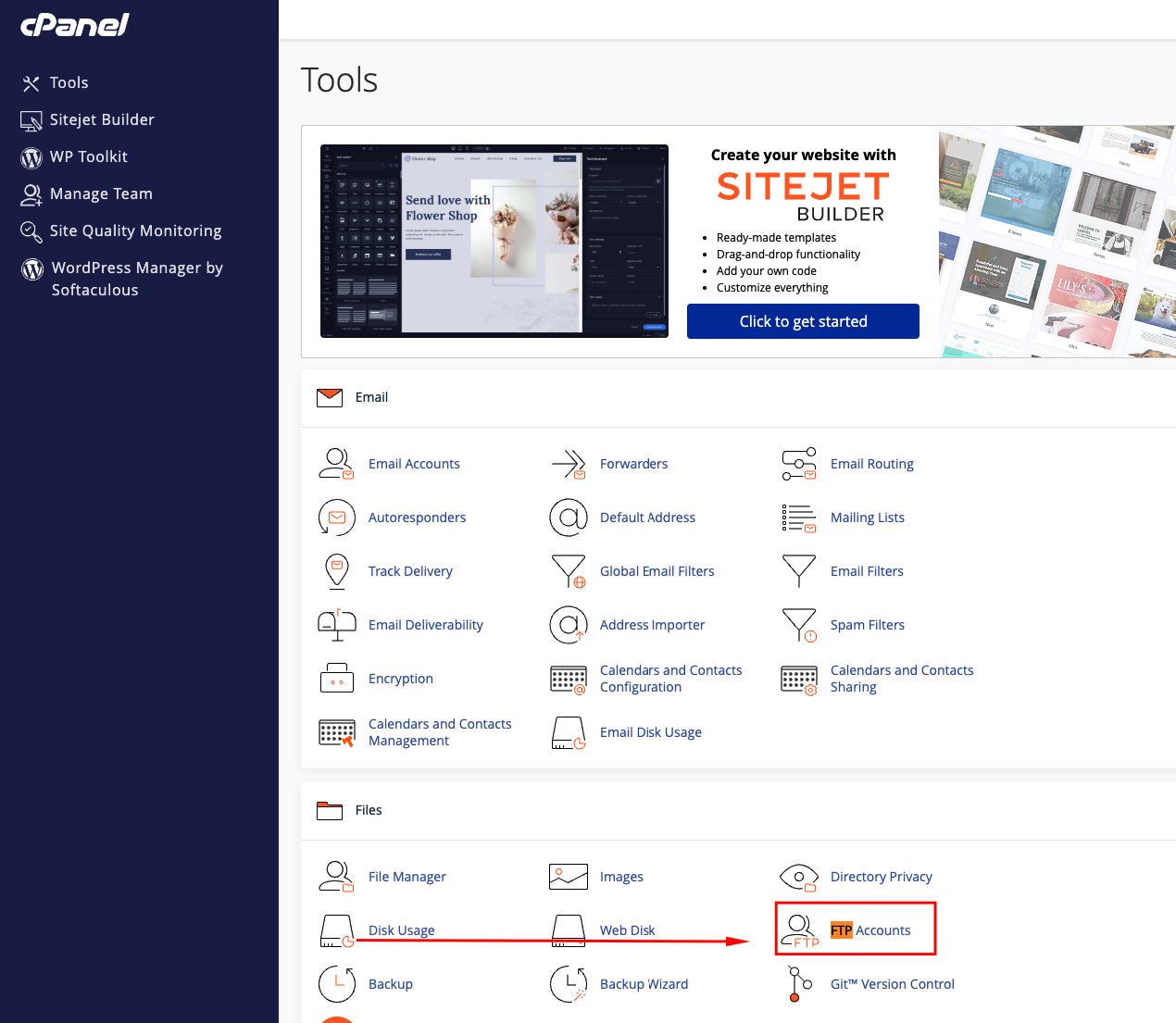
- Once logged in, use the search and click the FTP Accounts button
- From the FTP Accounts interface in cPanel fill in the provided fields to create your new FTP user.

Domain: If you have more than one domain, select the domain this user should be tied to from the drop-down arrow
Password: This will be the password used to authenticate with your FTP user. The password must be a strong password, you can generate the password using a password generator
Strength: This field informs you about the security of your password. The strength level could range from Very Weak to Very Strong.
Directory : This is the default directory on your web hosting account that the FTP user will
connect to and upload files to when you create an FTP account, it is limited to the directory specified here. cPanel will automatically populate an assumed directory based on your FTP username. You can remove everything after public_html/ and provide the directory you want the user to go to.
You can also type a single / and the user will have access to your home directory this is going to be everything outside of the public_html folder).
PLEASE NOTE: The FTP user will not be able to browse outside of the specified directory. However, he will be able to access all the files and subfolders in this folder. It is possible to determine the access level of a user.
Quota: The maximum size of the total number of files this FTP user can upload and store in their default directory, you can limit the disk space available to an FTP user here or set it to Unlimited When all the required fields have been completed, click on the Create an FTP account button to add the new user. A message will appear indicating “Account created” and your new FTP account will appear in the FTP Accounts section.