> ## Documentation Index
> Fetch the complete documentation index at: https://kb.verpex.com/llms.txt
> Use this file to discover all available pages before exploring further.
# Using the Get Connection Button When You Can't Access Your Server
> If you are unable to access your unmanaged VPS using SSH or your usual connection method, the Get Connection feature in the Verpex Client Area allows you to connect directly to your server. This is especially useful if the server is locked, misconfigured, or not responding as expected.
You should use the **Get Connection button** if:
* You cannot connect via SSH
* Your firewall rules are blocking access
* Network settings were misconfigured
* The server appears online but is inaccessible
This tool provides direct console access, allowing you to troubleshoot and restore connectivity.
# How to Connect Using Get Connection
## 1. Log in to the Verpex Client Area
Log in to your Verpex Client Area using your account credentials.
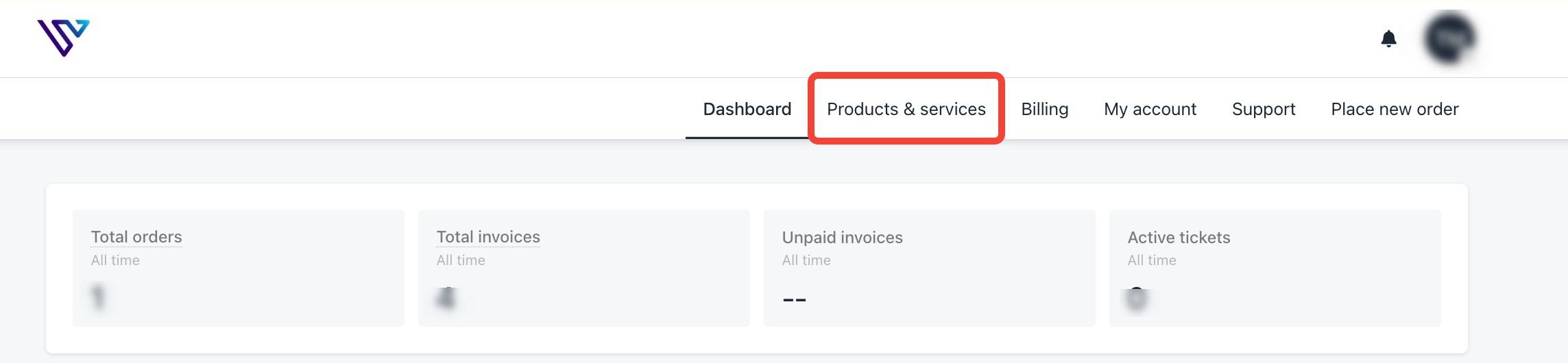
## 2. Go to Product and Services
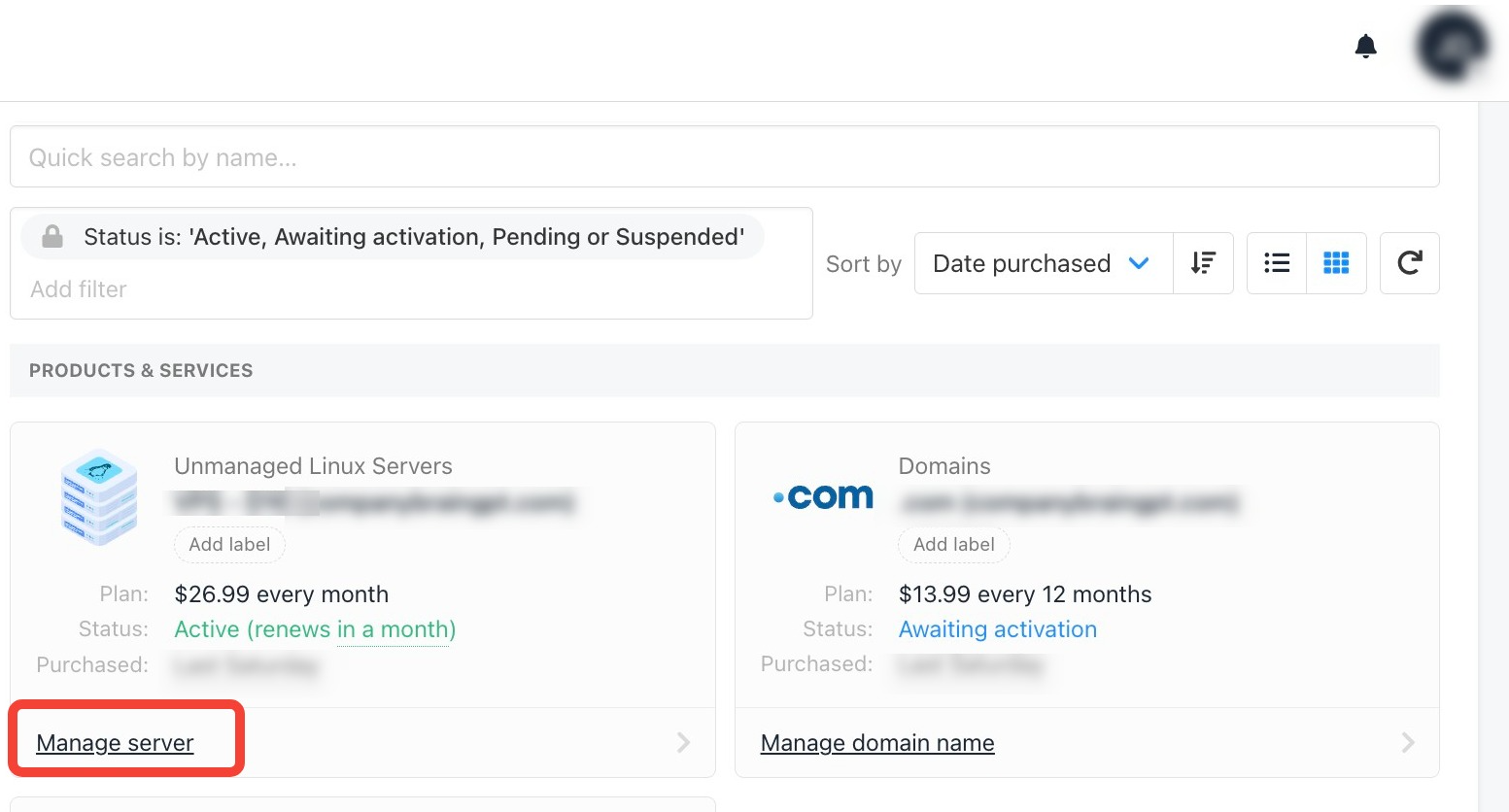
 ## 3. Click on Manage Server
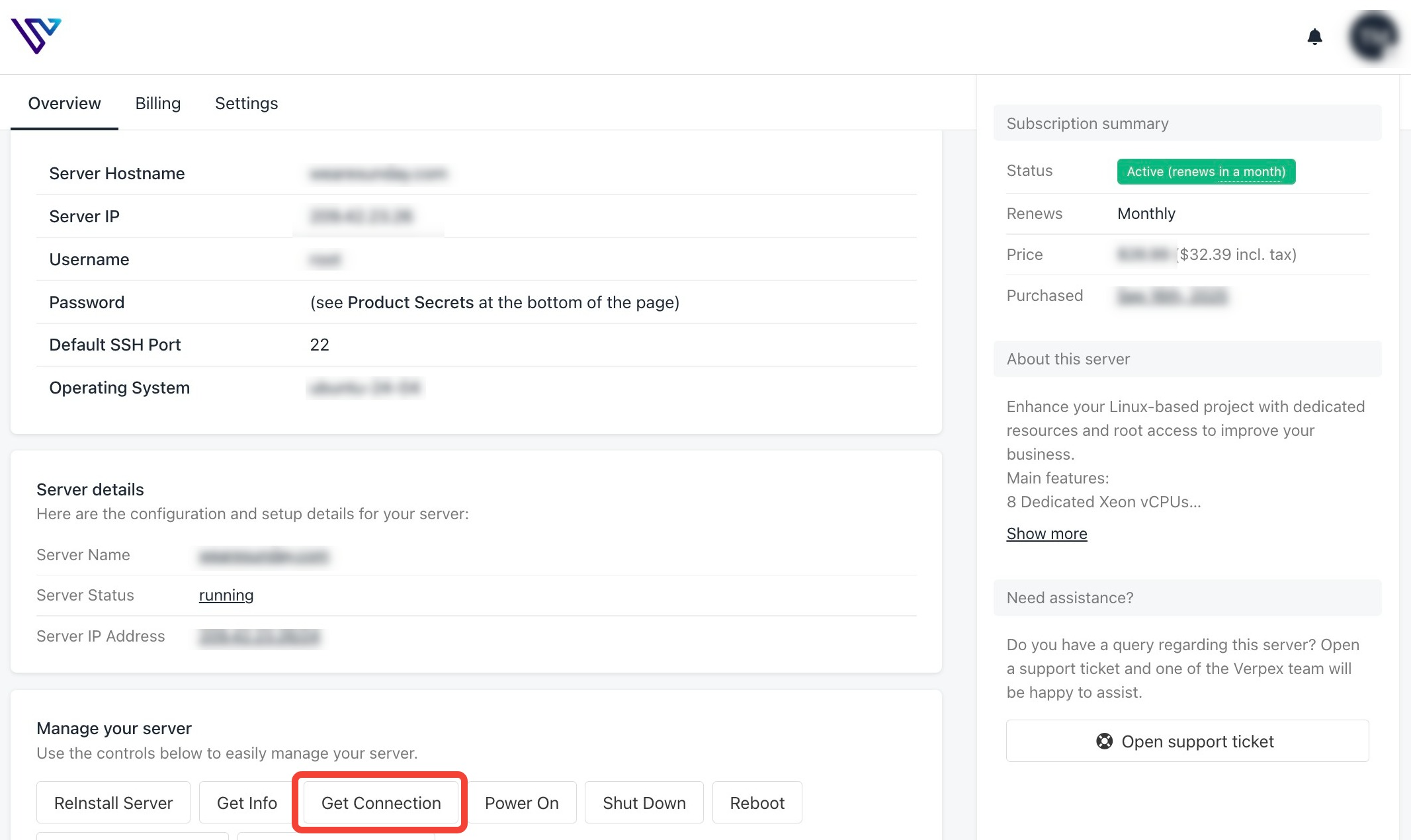
 ## 4. Click the Get Connection Button
 ## 5. Access Your Server Console
Once the console loads, you will have direct access to your server, even if SSH is unavailable.
From here, you can:
* Fix firewall or network configuration issues
* Reset SSH settings
* Restart services
* Perform recovery tasks
**Important Notes**
The Get Connection feature works even when external access methods are blocked
This tool is intended for unmanaged VPS clients
Any changes made via the console are the client’s responsibility
## 5. Access Your Server Console
Once the console loads, you will have direct access to your server, even if SSH is unavailable.
From here, you can:
* Fix firewall or network configuration issues
* Reset SSH settings
* Restart services
* Perform recovery tasks
**Important Notes**
The Get Connection feature works even when external access methods are blocked
This tool is intended for unmanaged VPS clients
Any changes made via the console are the client’s responsibility