> ## Documentation Index
> Fetch the complete documentation index at: https://kb.verpex.com/llms.txt
> Use this file to discover all available pages before exploring further.
# How to Reset the Root Password for Your Self-Managed Server
> This article explains how to reset the root password when access is lost. This method requires booting into emergency mode using the GRUB bootloader and performing the reset from a restricted shell environment.
# Step 1: Access the Server Console (VNC)
1. Log in to [https://clients.verpex.com/](https://clients.verpex.com/)
2. Go to Products and Services -> Hosting and Services
3. Click on **Manage**
4. Click the **Login** button
Now you are in your Console

# Step 2: Boot into GRUB Menu
1. Reboot the system
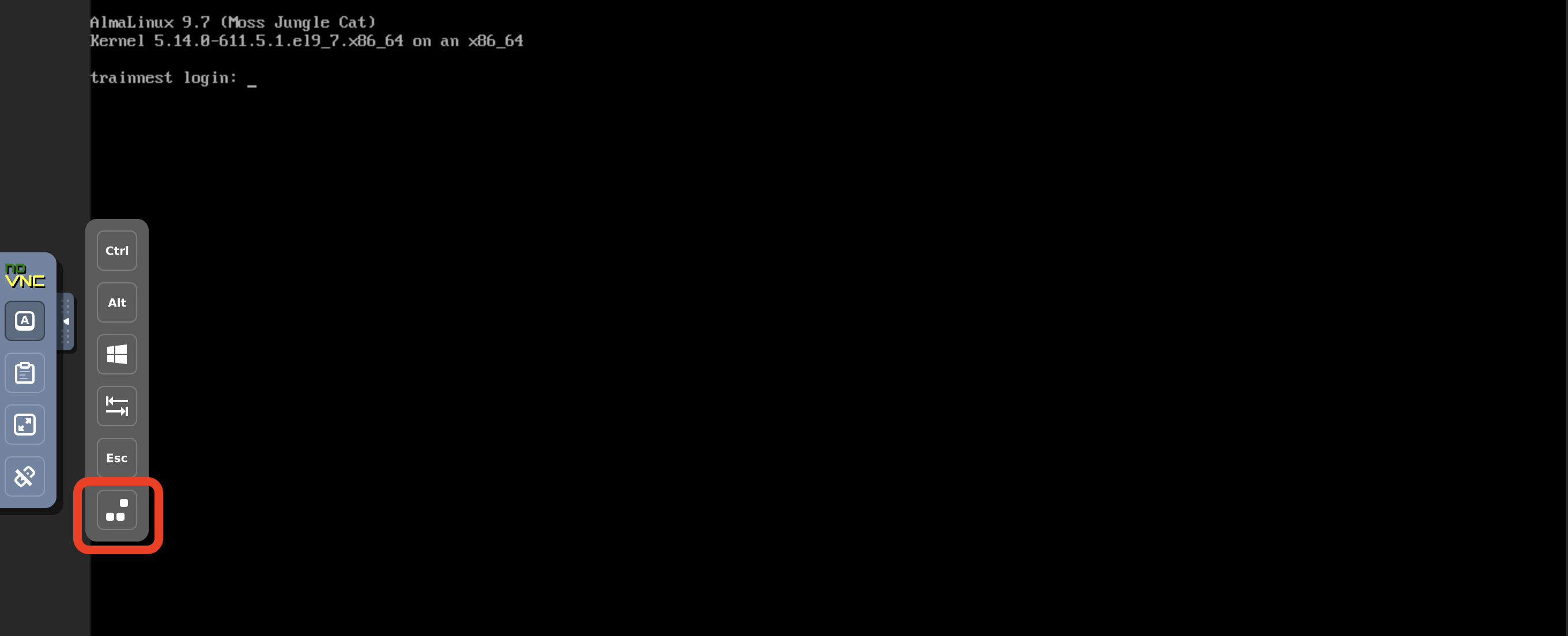
2. When the GRUB menu appears, select the default kernel entry. You should navigate with the arrows
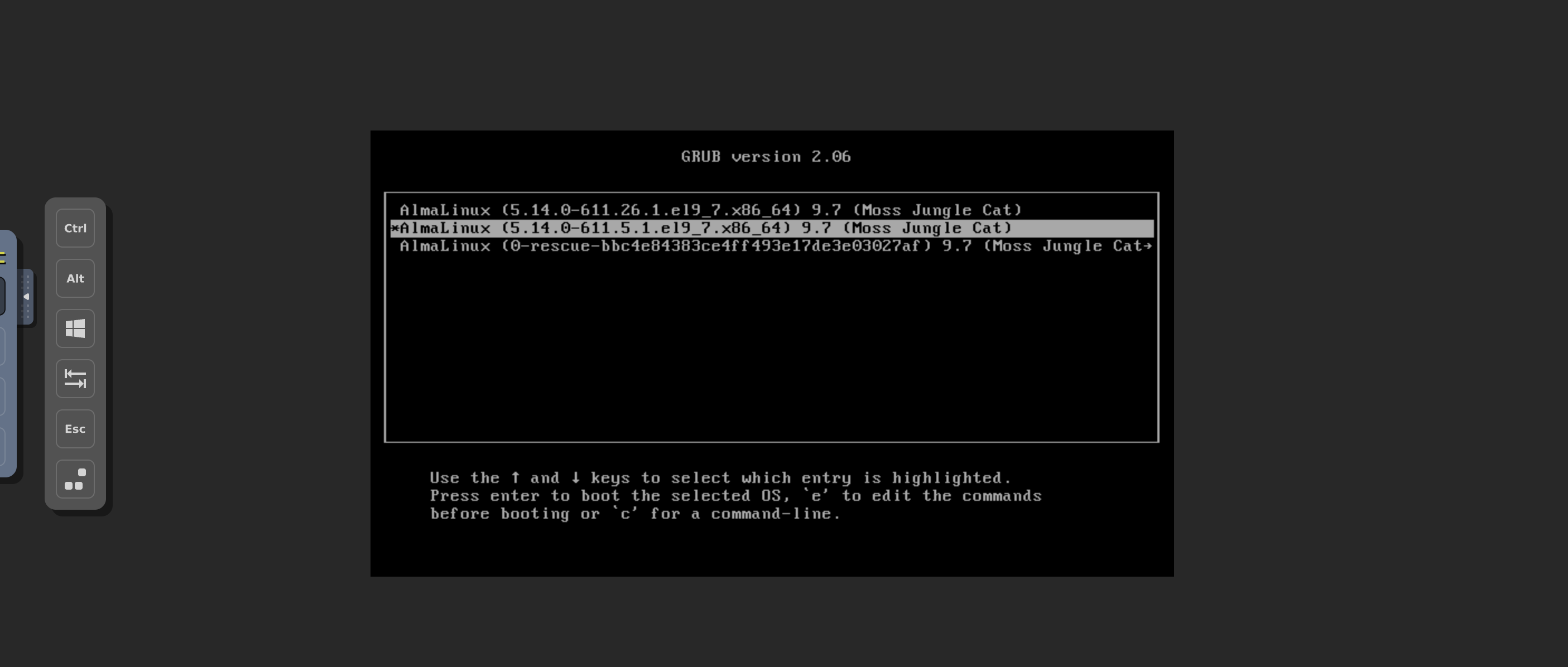
3. Press `e` to edit the boot parameters.
# Step 3: Modify Kernel Boot Parameters
1. Locate the line starting with linux or linuxefi
2. At the end of that line, add:
```
rd.break
```
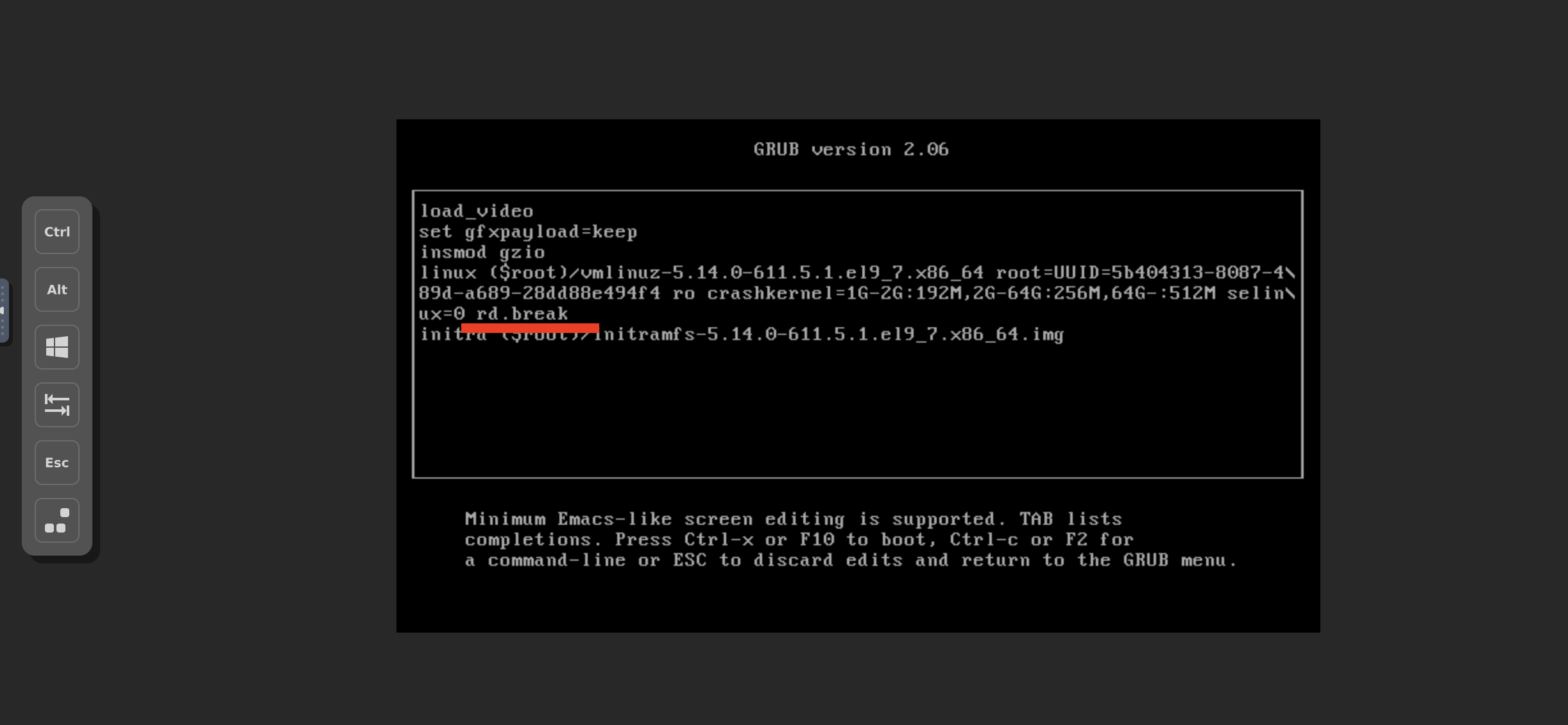
3. Press Ctrl + X (or F10) to boot with the modified parameters.
# Step 4: Enter Emergency Mode Shell
After booting, the system will drop into an emergency shell with a prompt similar to:
```
switch_root:/#
```
# Step 5: Remount the System as Writable
```
mount -o remount,rw /sysroot
```
# Step 6: Chroot into the Installed System
Switch into the actual system environment:
```
chroot /sysroot
```
# Step 7: Reset the Root Password
Run the password utility:
```
passwd root
```
* Enter a new password when prompted.
* Confirm the new password.
# Step 8: Enable SELinux Relabeling
This step should be performed only if you are using AlmaLinux
To ensure proper SELinux context restoration, create the autorelabel file:
```
touch /.autorelabel
```
# Step 9: Exit and Reboot
Exit the chroot environment and reboot the system:
```
exit
exit
```