> ## Documentation Index
> Fetch the complete documentation index at: https://kb.verpex.com/llms.txt
> Use this file to discover all available pages before exploring further.
# Using the File Manager in Enhance
> Learn how to use the File Manager in the Enhance control panel to navigate, create, upload, and manage your website files.
# Managing your website files in the Hosting Panel
## Open the File Manager
1. Log in to your Enhance control panel.
2. In the left sidebar, click **Websites**.

3. On the **Manage websites** page, click the website you want to manage.
4. Click the **Files** tab.

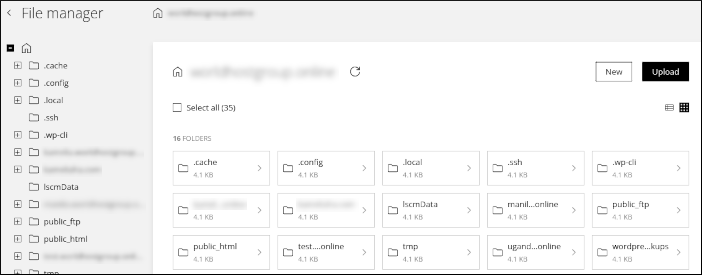
5. The **File manager** appears.
## Navigate your files
Use the folder tree in the left sidebar to move through the file system:
* Click a folder name to view its contents in the right pane.
* Click the plus sign (**+**) icon to show subfolders under the current folder.
## Manage files and folders
In the right pane, you can perform these actions.
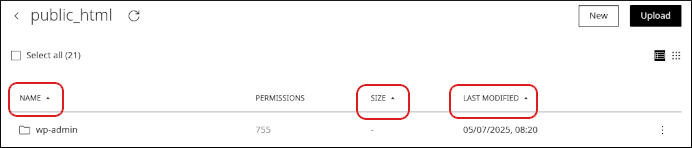
### Sort items
To sort the listing by name, size, or last modified date, click a column heading.
### Create a file or folder
1. Click **New**.
2. Click **File** or **Folder**.
### Upload a file or folder
1. Click **Upload**.
2. Click **File** or **Folder**.
### Modify an existing file or folder
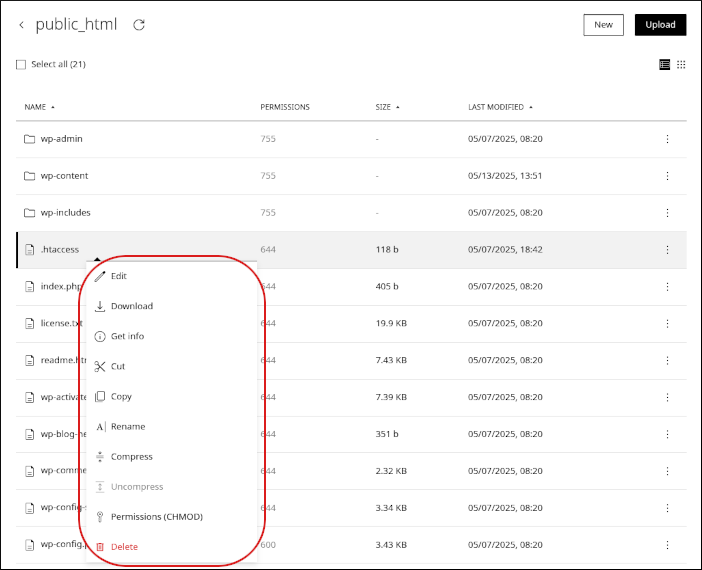
Right-click a file or folder, and then select one of these options:
* **Edit**: Edit a file.
* **Download**: Download a file to your local computer.
* **Get info**: View the path, size, permissions, and other details for a file or folder.
* **Copy**: Copy a file or folder.
* **Rename**: Rename a file or folder.
* **Compress**: Compress a file or folder.
* **Uncompress**: Extract a compressed file or folder.
* **Permissions (CHMOD)**: Change permissions for a file or folder.
* **Delete**: Delete a file or folder.
### Process multiple files at once
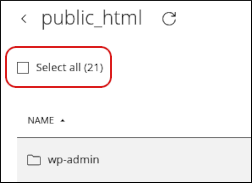
To perform actions on multiple files at the same time:
1. Select the **Select all** checkbox.
2. Choose one of the options that appears at the bottom of the page.

Be careful when working with multiple files at once, especially when you are deleting items.
## Related articles
* [Managing your WordPress site in Enhance](/enhance/managing-your-wordpress-site-in-enhance)
* [Installing an SSL certificate in Enhance](/enhance/installing-an-ssl-certificate-in-enhance)
* [Managing your Domains in Enhance](/enhance/managing-your-domains-in-enhance)
* [Managing your Email in Enhance](/enhance/managing-your-email-in-enhance)
* [Using the File Manager in Enhance](/enhance/using-the-file-manager-in-enhance)
* [Managing your MySQL databases in Enhance](/enhance/managing-your-mysql-databases-in-enhance)
* [Managing FTP accounts in Enhance](/enhance/managing-ftp-accounts-in-enhance)
* [Changing PHP versions and settings in Enhance](/enhance/changing-php-versions-and-settings-in-enhance)
* [Configuring SSH access in Enhance](/enhance/configuring-ssh-access-in-enhance)