> ## Documentation Index
> Fetch the complete documentation index at: https://kb.verpex.com/llms.txt
> Use this file to discover all available pages before exploring further.
# Managing Your WordPress Site in Enhance
> Learn how to manage your WordPress site in the Enhance control panel, including plugins, themes, security, users, single sign on, and debugging.
## Open the WordPress management page
1. Log in to your Enhance control panel.
2. In the left sidebar, click **Websites**.

3. On the **Manage websites** page, click the website you want to manage.
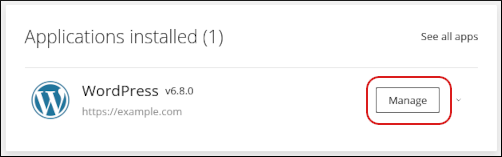
4. In the **Applications installed** section, locate your WordPress site, and then click **Manage**.
## Manage WordPress settings
### General
The **General** section opens first.
* To log in to your WordPress dashboard, click **Login to admin**.
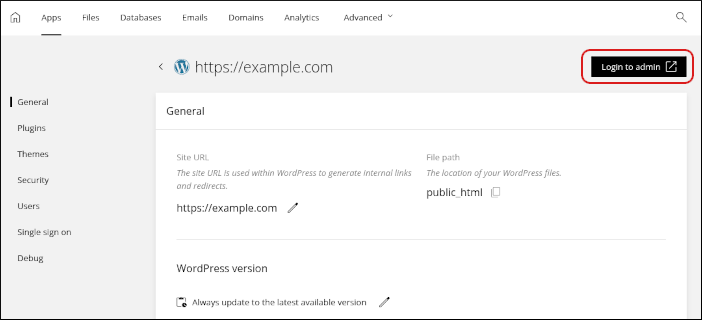
The dashboard opens in a new tab.
* In the **General** section, you can also:
* Change the WordPress site URL.
* Change the location of your WordPress site files.
* Manage versions for your WordPress site.
* Enable or disable maintenance mode.
### Plugins
To manage your WordPress plugins, click **Plugins** in the left sidebar.
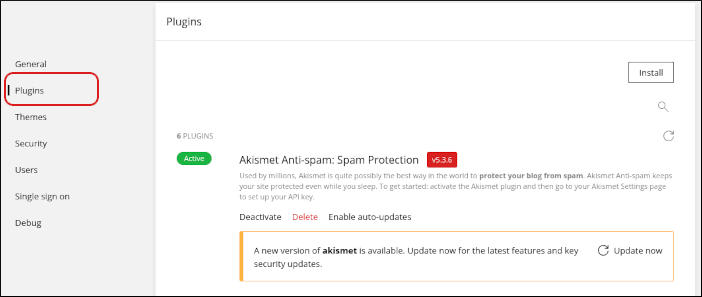
In the **Plugins** section, you can:
* View installed plugins, including version and status information.
* Install, activate, deactivate, update, and delete plugins.
### Themes
To manage your WordPress themes, click **Themes** in the left sidebar.
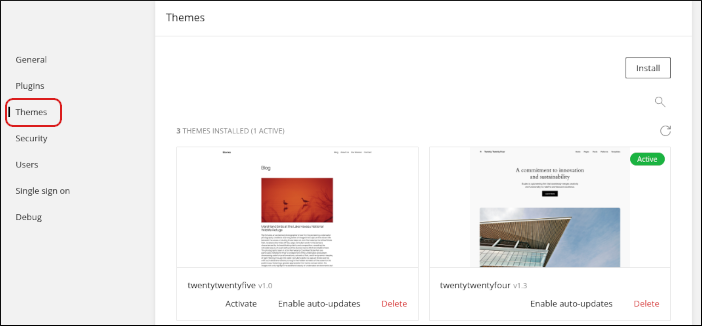
In the **Themes** section, you can:
* View installed themes, including version and status information.
* Install, activate, deactivate, update, and delete themes.
### Security
To manage WordPress security settings, click **Security** in the left sidebar.
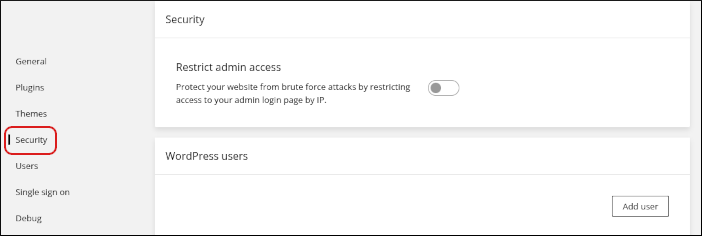
In the **Security** section, you can restrict administrative access to your WordPress site by IP address.
### Users
To manage your WordPress user accounts, click **Users** in the left sidebar.
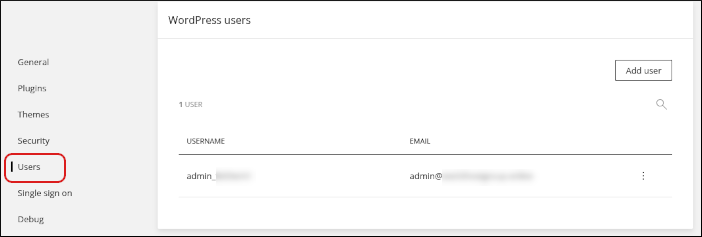
In the **Users** section, you can:
* Add a user account by clicking **Add user**.
* Modify an existing user account. You can change the username, email address, and password for an account.
* Delete a user account.
### Single sign on
To manage single sign on settings for WordPress, click **Single sign on** in the left sidebar.
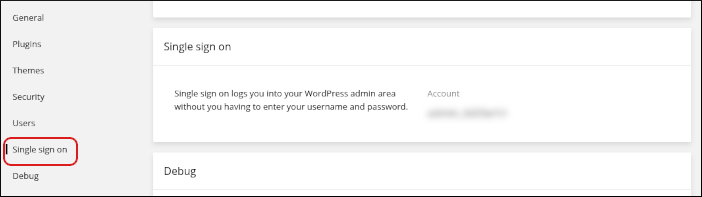
With single sign on, you can log in to your WordPress site without typing a separate username and password.
### Debug
To configure WordPress debugging settings, click **Debug** in the left sidebar.
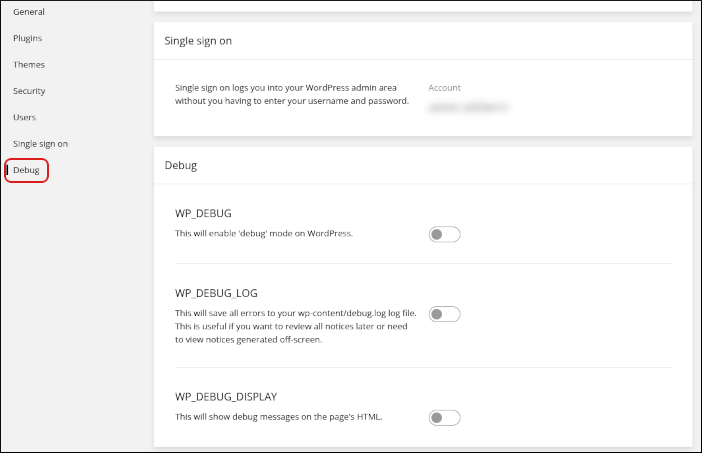
In the **Debug** section, you can enable these WordPress debugging settings:
* **WP\_DEBUG**
* **WP\_DEBUG\_LOG**
* **WP\_DEBUG\_DISPLAY**
For more information about these debugging options, see [Debugging WordPress](/wordpress/how-to-debug-wordpress-with-cpanel-and-wordpress-toolkit).
## Related articles
* [Installing an SSL certificate in Enhance](/enhance/installing-an-ssl-certificate-in-enhance)
* [Managing your Domains in Enhance](/enhance/managing-your-domains-in-enhance)
* [Managing your Email in Enhance](/enhance/managing-your-email-in-enhance)
* [Using the File Manager in Enhance](/enhance/using-the-file-manager-in-enhance)
* [Managing Backups in Enhance](/enhance/managing-backups-in-enhance)
* [Managing your MySQL databases in Enhance](/enhance/managing-your-mysql-databases-in-enhance)
* [Managing FTP accounts in Enhance](/enhance/managing-ftp-accounts-in-enhance)
* [Changing PHP versions and settings in Enhance](/enhance/changing-php-versions-and-settings-in-enhance)
* [Configuring SSH access in Enhance](/enhance/configuring-ssh-access-in-enhance)