> ## Documentation Index
> Fetch the complete documentation index at: https://kb.verpex.com/llms.txt
> Use this file to discover all available pages before exploring further.
# Managing Your MySQL Databases in Enhance
> Learn how to create and manage MySQL databases and database users in the Enhance control panel.
## Manage database users
Create at least one database user before you create a database so the user can access it.
1. Log in to your Enhance control panel.
2. In the left sidebar, click **Websites**.

3. On the **Manage websites** page, click the website you want to manage.
4. Click the **Databases** tab.

5. On the **MySQL databases** page, click **Add user**.

6. In the **Add database user** section, enter the username and password for the user.
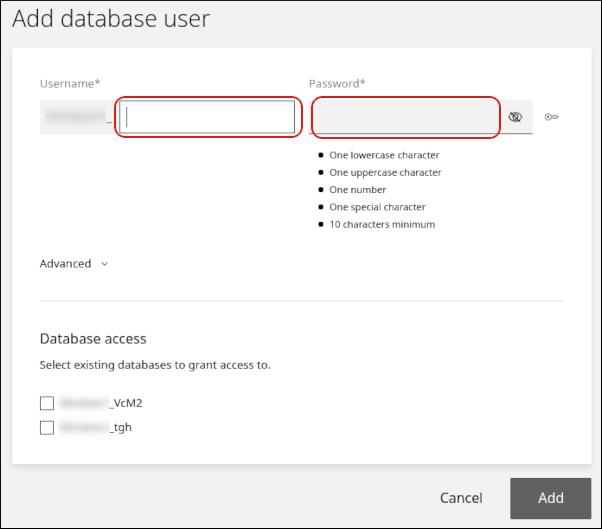
7. If one or more databases already exist, they appear in the **Database access** section. Select the checkbox next to each database you want the user to access.
8. Click **Add**.
9. Click the **Users** tab. The new user appears in the user list.
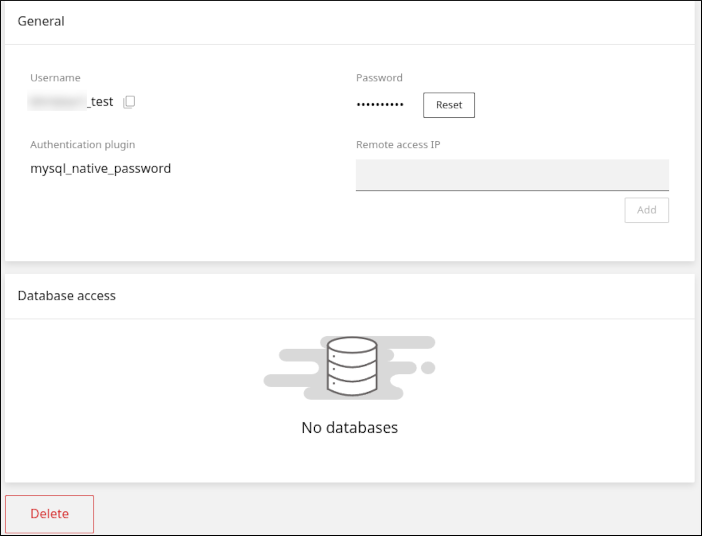
10. Click the user to modify it. On this page, you can:
* Click **Reset** to reset the user's password.
* Enter an IP address in the **Remote access IP** field to allow remote database access.
* Click **Delete** to delete the user.
## Manage databases
1. Log in to your Enhance control panel.
2. In the left sidebar, click **Websites**.

3. On the **Manage websites** page, click the website you want to manage.
4. Click the **Databases** tab.

5. On the **MySQL databases** page, click **Add database**.

6. In the **Add database** section, enter the database name.
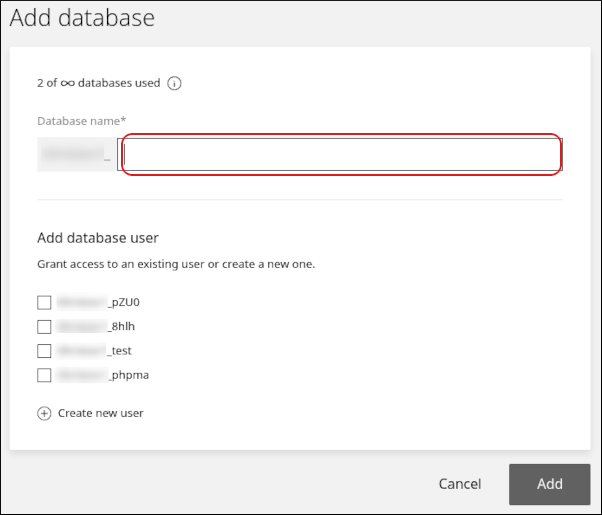
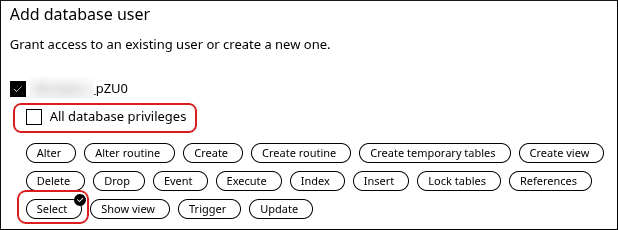
7. In the **Add database user** section, select one or more users that can access the database.
* To grant all access privileges to a user, leave **All database privileges** selected.
* To grant only specific privileges, clear **All database privileges** and select the permissions you want to grant.
8. Click **Add**. The new database appears on the **Databases** tab.
9. Click the database to modify it and access additional features. On this page, you can:
* Click **PhpMyAdmin** to open phpMyAdmin.
* Add database users to the database or remove them.
* Click **Upload** to import a SQL file and populate the database.

* Click **Download** to export the database as a SQL file.

* Click **Delete** to delete the database.

## Related articles
* [Managing your WordPress site in Enhance](/enhance/managing-your-wordpress-site-in-enhance)
* [Installing an SSL certificate in Enhance](/enhance/installing-an-ssl-certificate-in-enhance)
* [Managing your Domains in Enhance](/enhance/managing-your-domains-in-enhance)
* [Managing your Email in Enhance](/enhance/managing-your-email-in-enhance)
* [Using the File Manager in Enhance](/enhance/using-the-file-manager-in-enhance)
* [Managing Backups in Enhance](/enhance/managing-backups-in-enhance)
* [Managing FTP accounts in Enhance](/enhance/managing-ftp-accounts-in-enhance)
* [Changing PHP versions and settings in Enhance](/enhance/changing-php-versions-and-settings-in-enhance)
* [Configuring SSH access in Enhance](/enhance/configuring-ssh-access-in-enhance)