> ## Documentation Index
> Fetch the complete documentation index at: https://kb.verpex.com/llms.txt
> Use this file to discover all available pages before exploring further.

# How to Deploy a Node.js Application on Enhance

> This guide walks you through deploying a Node.js application on Enhance, from uploading your files and connecting via SSH to deploying with the Node.js tool and installing dependencies.

# 1. Log in to Enhance Control Panel

1. Navigate to **Websites**.
2. Click on the **desired domain name**.

# 2. Upload Your Application Files

1. Go to **Files**.

<Frame>
  ![](https://files.readme.io/537c1164fdd4430fbd895fa28c9baa2fae07a074b5a8f3def3af585cea3c33e6-image.png)
</Frame>

2. In your home directory, create a folder called:

```
my-app
```

3. Upload your application files into this folder.

<Frame>
  ![](https://files.readme.io/676979147b7ebf49e185ea0ab4835baee5b7a3ebc826eb48308e3399242a601d-image.png)
</Frame>

```javascript index.js theme={null}
const express = require('express');
const app = express();

// Use PORT from environment or default to 3000
const PORT = process.env.PORT || 3000;

app.get('/', (req, res) => {
  res.send(`
    <!DOCTYPE html>
    <html>
      <head>
        <title>My Node.js App</title>
        <style>
          body {
            font-family: Arial, sans-serif;
            max-width: 600px;
            margin: 80px auto;
            text-align: center;
          }
          h1 { color: #2c7be5; }
          .badge {
            background: #e8f4fd;
            padding: 8px 16px;
            border-radius: 20px;
            font-size: 14px;
          }
        </style>
      </head>
      <body>
        <h1>🚀 Node.js App is Running!</h1>
        <p class="badge">Hosted on Enhance</p>
        <p>Server time: ${new Date().toLocaleString()}</p>
        <p>Node version: ${process.version}</p>
      </body>
    </html>
  `);
});

app.get('/health', (req, res) => {
  res.json({
    status: 'ok',
    uptime: process.uptime()
  });
});

// Listen on all interfaces (required for proxying)
app.listen(PORT, '0.0.0.0', () => {
  console.log(`App running on port ${PORT}`);
});
```

```json package.json theme={null}
{
  "name": "demo-node-app",
  "version": "1.0.0",
  "description": "A simple Node.js demo app for Enhance hosting",
  "main": "index.js",
  "scripts": {
    "start": "node index.js"
  },
  "dependencies": {
    "express": "^4.18.2"
  }
}
```

# 3. Connect via SSH

If you don't know the SSH password, you can reset it:

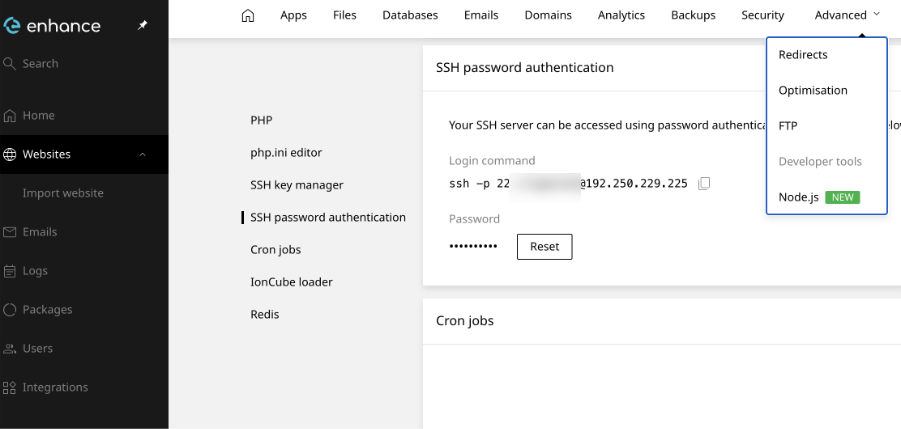
1. In Enhance CP, go to:

* **Websites**

* Select your **domain**

* **Advanced**

* **Developer Tools**
<Frame>
  ![](https://files.readme.io/91f1d9197cf4920cfa4c86fa0505976583eb97fa496322f65d87f657cb2f1209-image.png)
</Frame>

2. Scroll down to SSH Password Authentication.

3. Click Reset and set a new password.

**SSH Example**

```
ssh -p 22 username@192.250.229.225
```

Once connected:

```
username@s4515:~$ ls

my-app  public_html
```

Navigate to your application directory:

```
   username@s4515:~$ cd my-app
```

# 4. Deploy the Application

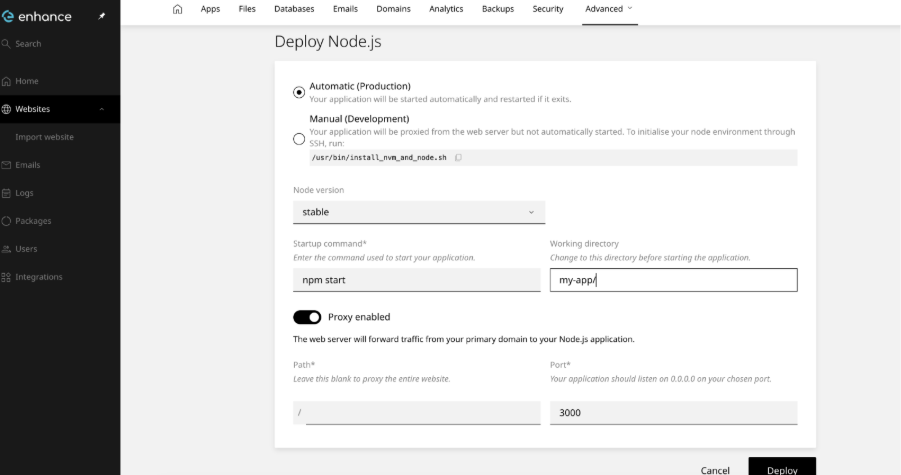
Return to the Enhance Control Panel and deploy the application using the Deploy Node.js tool.
<Frame>
  ![](https://files.readme.io/1821203580d3e41a4656e322a0926bdd34b3d792371e89ff50f58a6ca2c9c25f-image.png)
</Frame>

Configure the deployment according to the deployment screen and point it to your `my-app` directory.

# 5. Install Dependencies

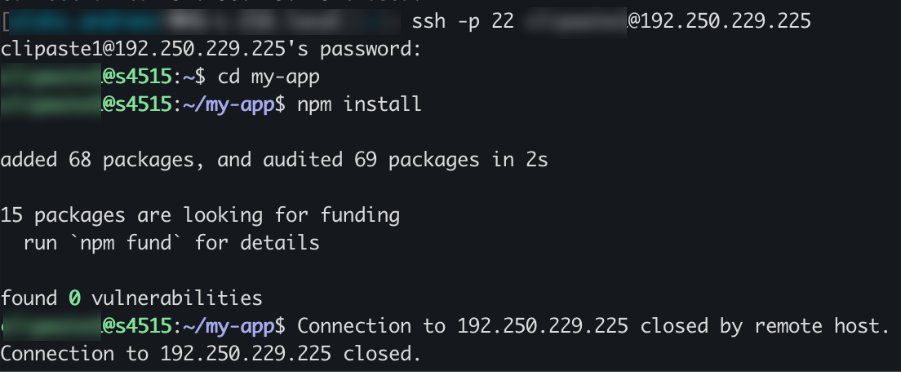
After the deployment has been created, return to your SSH session and run:

```
 npm install
```

```
run `npm fund` for details
```
<Frame>
  ![](https://files.readme.io/dc75a902d3948adb396c2af7fb73b167f04ffeb6d0efc5325b1e11166e7e6796-image.png)
</Frame>

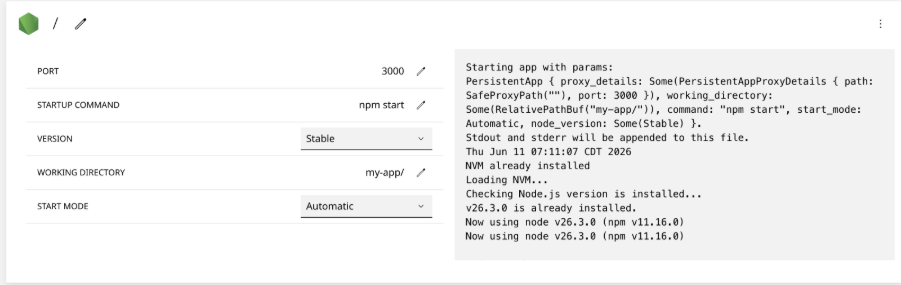
Your Node.js application should now be successfully deployed on Enhance

<Frame>
  ![](https://files.readme.io/fa0a31ba3c2bb44e9ee5045adb7ae8764245c989b6b5354d2796538d7139c228-image.png)
</Frame>

<Frame>
  ![](https://files.readme.io/14d70b9205664f23543400cd3f6b2b84af7c6f76493d81c7ff5695eb01cb2caf-image.png)
</Frame>