> ## Documentation Index
> Fetch the complete documentation index at: https://kb.verpex.com/llms.txt
> Use this file to discover all available pages before exploring further.
# Enhance Reseller: Managing Customers from the Panel
Resellers using **Enhance Reseller Hosting** can now manage their customers directly from the **[Verpex.com](http://Verpex.com)** panel. If you have an active Enhance Reseller product, you’ll see a new **My Clients** section in the left-hand navigation, allowing you to view your customers and access customer management tools without leaving the **[verpex.com](http://verpex.com)** panel.
**Note:** The **My Customers** section is only available if you have an **active Enhance Reseller** product.
## **Accessing My Customers**
1. Log in to your **[Verpex.com](http://Verpex.com)** account at [https://clients.verpex.com/](https://clients.verpex.com/)
2. From the left-hand navigation, click **My Customers**.
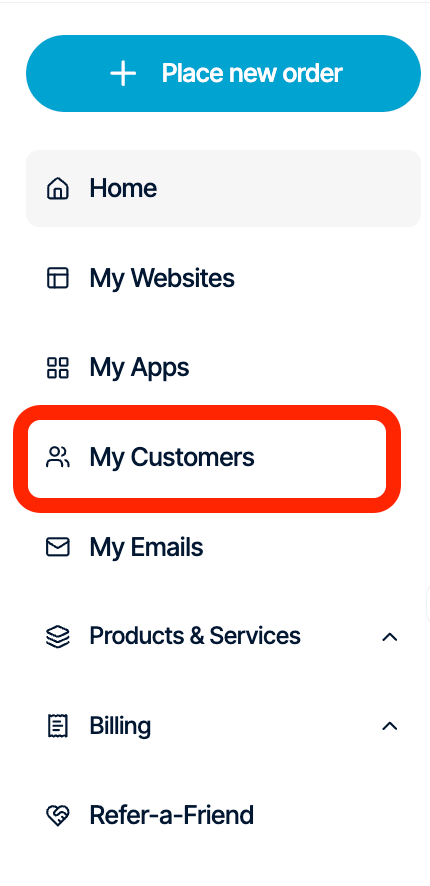 3. You’ll see a list of all customers associated with your Enhance Reseller account.
## **[](https://kb.hosting.com/docs/enhance-reseller-managing-customers-from-hostingcom-panel#customer-overview)Customer Overview**
The **My Customers** page displays the following information for each customer:
* **Organisation** – The customer’s organisation or account name.
* **Owner** – The primary account owner and email address.
* **Packages** – The number of hosting packages assigned to the customer.
* **Websites** – The number of websites the customer currently hosts.
You can also use the **Search** bar to quickly locate a customer.
3. You’ll see a list of all customers associated with your Enhance Reseller account.
## **[](https://kb.hosting.com/docs/enhance-reseller-managing-customers-from-hostingcom-panel#customer-overview)Customer Overview**
The **My Customers** page displays the following information for each customer:
* **Organisation** – The customer’s organisation or account name.
* **Owner** – The primary account owner and email address.
* **Packages** – The number of hosting packages assigned to the customer.
* **Websites** – The number of websites the customer currently hosts.
You can also use the **Search** bar to quickly locate a customer.
 ## **[](https://kb.hosting.com/docs/enhance-reseller-managing-customers-from-hostingcom-panel#managing-a-customer)Managing a Customer**
Each customer has a **Manage** button.
Selecting **Manage** securely logs you into the customer’s Enhance control panel, allowing you to manage their hosting environment without needing their login credentials.
## **Customer Actions**
Click the **three-dot (⋮) Actions** menu next to any customer to access additional management options.
## **[](https://kb.hosting.com/docs/enhance-reseller-managing-customers-from-hostingcom-panel#managing-a-customer)Managing a Customer**
Each customer has a **Manage** button.
Selecting **Manage** securely logs you into the customer’s Enhance control panel, allowing you to manage their hosting environment without needing their login credentials.
## **Customer Actions**
Click the **three-dot (⋮) Actions** menu next to any customer to access additional management options.
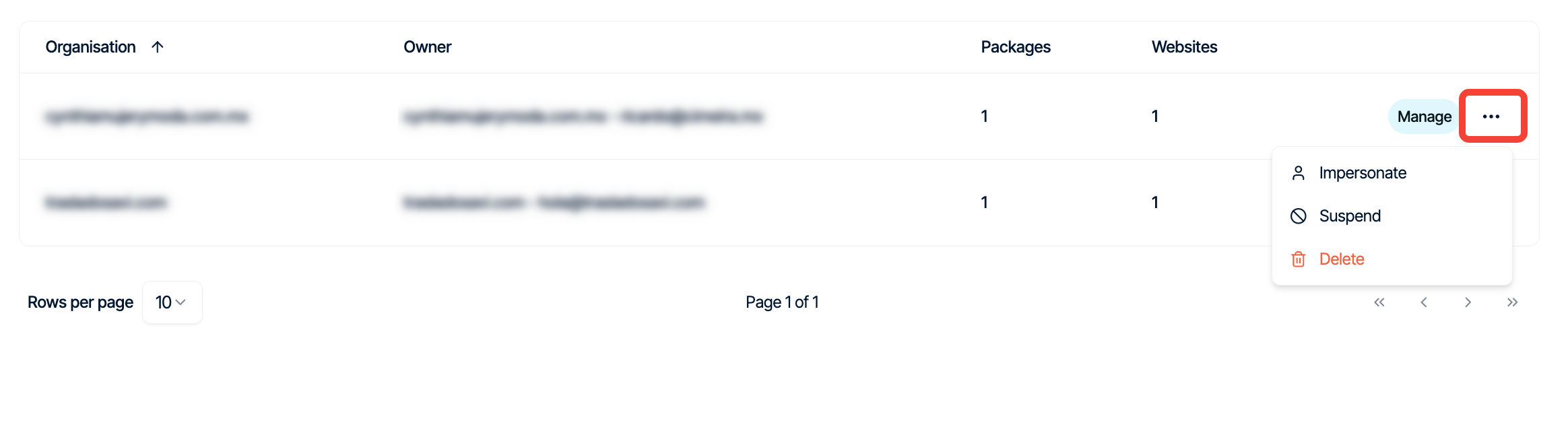 ### **Impersonate**
Logs you directly into the customer’s Enhance control panel as that customer. This allows you to troubleshoot issues or perform administrative tasks on their behalf without requiring their login credentials.
### **Suspend**
Temporarily suspends the customer’s account. Suspended customers will be unable to use their hosting services until the account is reactivated.
**Note:** Suspending a customer does not permanently remove their data.
### **Delete**
Permanently removes the customer from your reseller account.
## **Creating a New Customer**
To create a new customer:
1. Open **My Customers**.
2. Click **Create customer**.
### **Impersonate**
Logs you directly into the customer’s Enhance control panel as that customer. This allows you to troubleshoot issues or perform administrative tasks on their behalf without requiring their login credentials.
### **Suspend**
Temporarily suspends the customer’s account. Suspended customers will be unable to use their hosting services until the account is reactivated.
**Note:** Suspending a customer does not permanently remove their data.
### **Delete**
Permanently removes the customer from your reseller account.
## **Creating a New Customer**
To create a new customer:
1. Open **My Customers**.
2. Click **Create customer**.
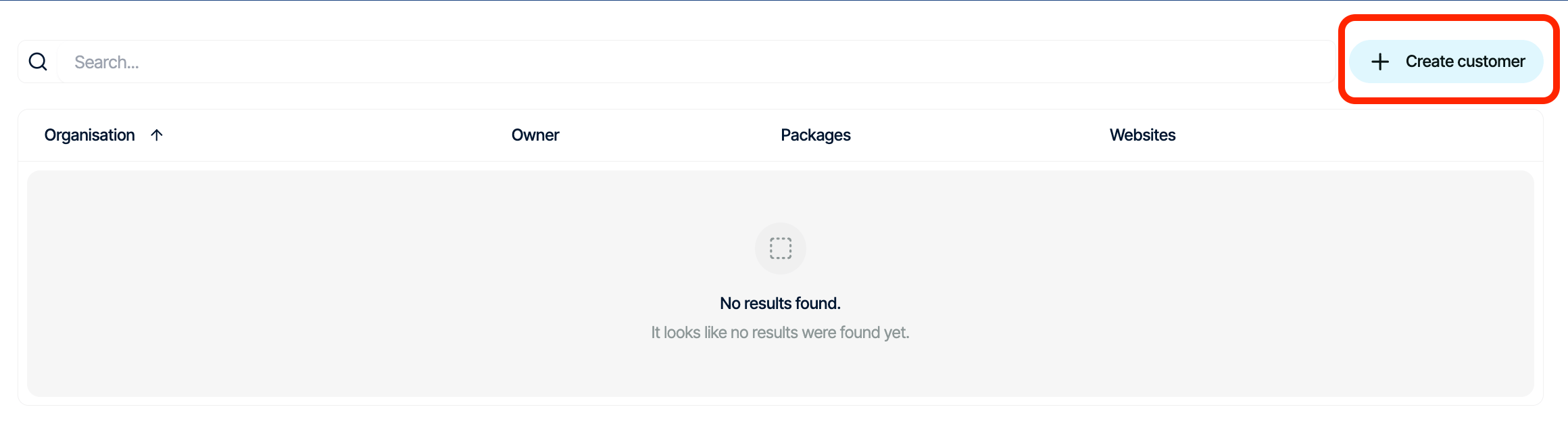 3. Enter the required customer details.
4. Click **Add** to create the customer
The customer will be added to your Enhance Reseller account and will appear in the customer list.
3. Enter the required customer details.
4. Click **Add** to create the customer
The customer will be added to your Enhance Reseller account and will appear in the customer list.