> ## Documentation Index
> Fetch the complete documentation index at: https://kb.verpex.com/llms.txt
> Use this file to discover all available pages before exploring further.
# Configuring SSH Access in Enhance
> Learn how to configure SSH access to your account using key-based or password-based authentication in the Enhance control panel.
You can configure key-based authentication, password-based authentication, or both. This article shows you how to set up both methods.
## Configuring SSH key authentication
You can enable SSH key access for your account. However, before you follow the procedure below, make sure you generate a key pair (public key and private key) first.
To enable key-based SSH access to your account, follow these steps:
1. Log in to your Enhance control panel.
2. In the left sidebar, click **Websites**:

3. On the **Manage websites** page, click the website you want to manage.
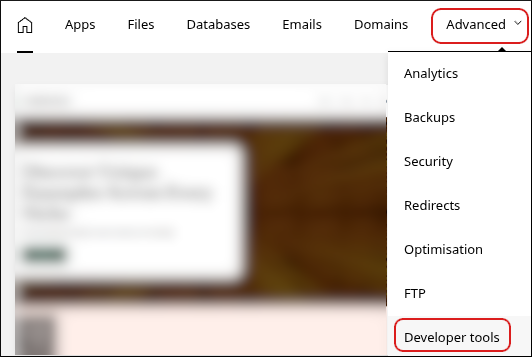
4. A list of tabs appears at the top of the page. Click the **Advanced** tab, and then click **Developer tools**:
5. The **Developer tools** page appears. In the left sidebar, click **SSH key manager**:
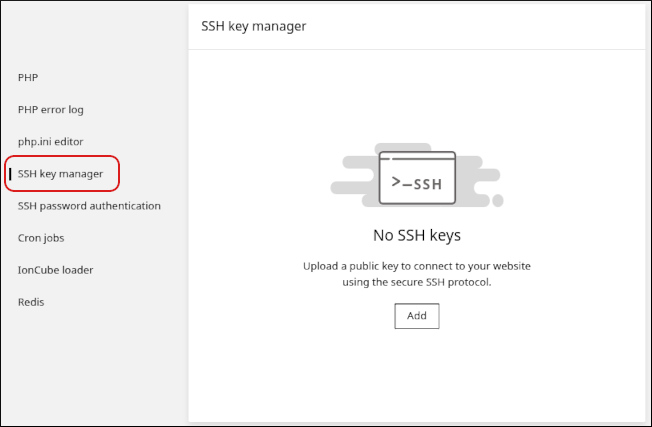
6. Click **Add**.
7. In the **Name** text box, type a descriptive name for the key.
8. In the **Public key** text box, paste the text of the public key. Alternatively, you can upload the public key file directly by clicking **Upload file**.
The public key filename usually ends with a *.pub* extension. Make sure you upload your *public* key, and **not** your *private* key!
9. Click **Upload**. The key and the SSH command to access your account appear:
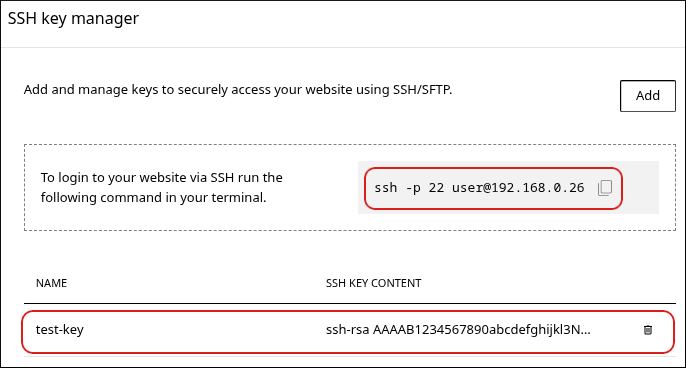
* You can add multiple keys for your account. To do this, click **Add**, and then repeat steps 7 to 9.
* To delete a key, click the trash can icon, and then click **Delete** to confirm.
## Configuring SSH password authentication
To enable SSH access to your account using a password, follow these steps:
1. Log in to your Enhance control panel.
2. In the left sidebar, click **Websites**:

3. On the **Manage websites** page, click the website you want to manage.
4. A list of tabs appears at the top of the page. Click the **Advanced** tab, and then click **Developer tools**:

5. The **Developer tools** page appears. In the left sidebar, click **SSH password authentication**:
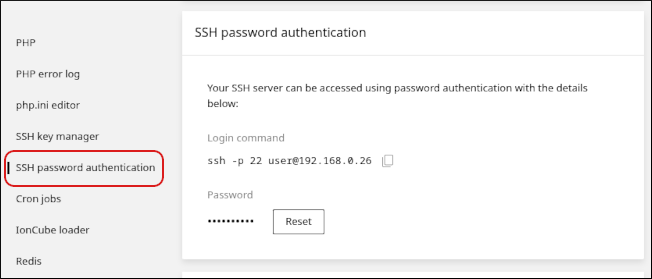
6. To reset the password, click **Reset**.
7. In the **New password** text box, type the password you want to use. Alternatively, click the key icon to automatically generate a strong, random password.
8. Click **Save**. The new password takes effect immediately.
9. Use the command under **Login command** to access your account using SSH.
## Related articles
* [Managing your WordPress site in Enhance](/enhance/managing-your-wordpress-site-in-enhance)
* [Installing an SSL certificate in Enhance](/enhance/installing-an-ssl-certificate-in-enhance)
* [Managing your Domains in Enhance](/enhance/managing-your-domains-in-enhance)
* [Managing your Email in Enhance](/enhance/managing-your-email-in-enhance)
* [Using the File Manager in Enhance](/enhance/using-the-file-manager-in-enhance)
* [Managing Backups in Enhance](/enhance/managing-backups-in-enhance)
* [Managing your MySQL databases in Enhance](/enhance/managing-your-mysql-databases-in-enhance)
* [Managing FTP accounts in Enhance](/enhance/managing-ftp-accounts-in-enhance)
* [Changing PHP versions and settings in Enhance](/enhance/changing-php-versions-and-settings-in-enhance)