> ## Documentation Index
> Fetch the complete documentation index at: https://kb.verpex.com/llms.txt
> Use this file to discover all available pages before exploring further.
# How to Increase your PHP Memory limit
PHP allocates a certain amount of memory when executing PHP scripts. When the allocated memory is exhausted, the PHP script shows a fatal error
```text Memory_limit error theme={null}
PHP Fatal error: Allowed memory size of xxx bytes exhausted (tried to allocate yyy) in yourscript.php
```
**Please note that the memory\_limit value should be set to at least as big as post\_max\_size.**
Follow these steps to increase memory\_limit in cPanel
* Log into your cPanel from within your Verpex client account
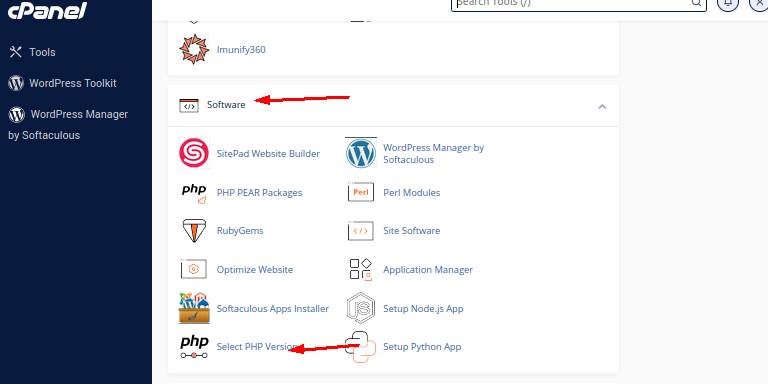
* Locate and **Select the PHP version** menu in the **Software** section
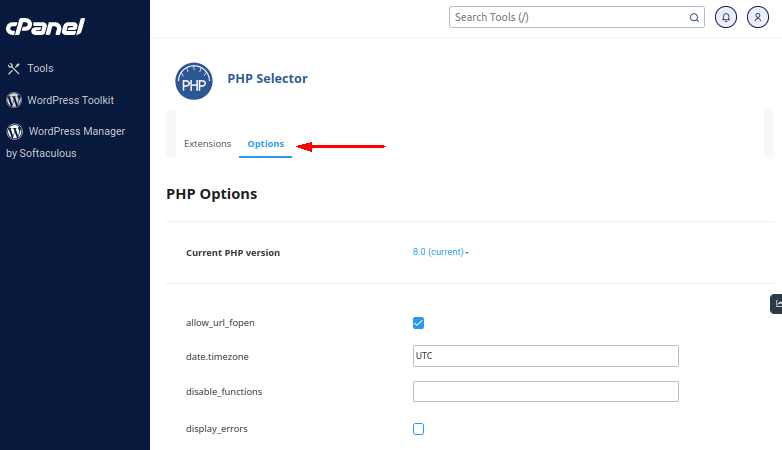
* Click the **Options** section for the php.ini values and scroll down to **memory\_limit**
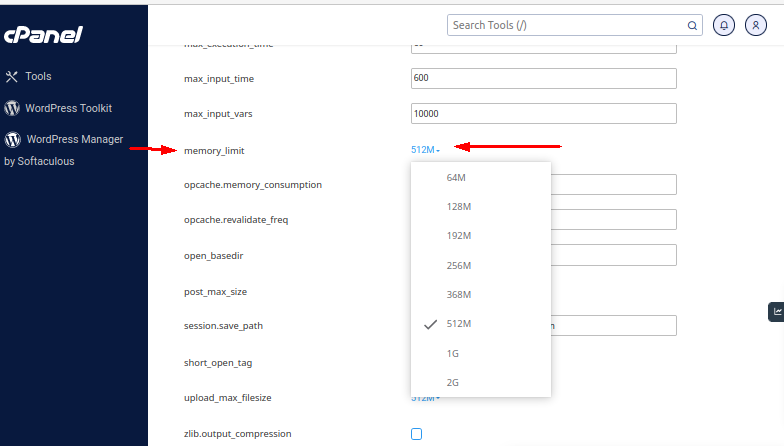
* Set the value to what you want. Once you have done the change make sure that you do a left-click anywhere outside the text input or drop-down box.
* You will see a green box with a message that will confirm that the change you’ve made has been applied.
You can confirm whether your changes have got into effect by creating a PHP info.php file. To create an info.php file, Follow the steps in this [guide](/cpanel/how-to-create-a-phpinfo).