> ## Documentation Index
> Fetch the complete documentation index at: https://kb.verpex.com/llms.txt
> Use this file to discover all available pages before exploring further.
# Creating a Node.js application with the Node.js Selector
> Learn how to create a Node.js application using the Node.js selector in cPanel.
The Node.js selector allows you to easily set up Node.js applications with the cPanel graphical interface or using the command line. Use whichever method you prefer.
Throughout this tutorial we use the following variables:
* **app** represents the application root directory and application uri.
* **example** represents the username.
* **example.com** represents the domain.
* **app.js** represents the application startup file.
* **My app** represents the description.
* **10 or 11** represents the node.js major version number.
You should change these values to match the values required for your account and application.
## Method #1: Setting up a Node.js application with the cPanel interface
To set up a Node.js application using cPanel, use the following procedures.
### Step #1: Create the application
First, you must create an application. To do this, follow these steps:
1. Log in to cPanel.
2. On the **Tools** page, in the **Software** section, click **Setup Node.js App**:
3. On the Node.js selector page, click **CREATE APPLICATION** to start the application setup:

4. Fill in the fields on the application setup form:
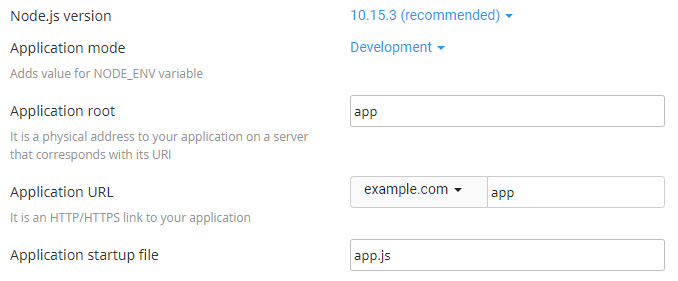
* **Node.js version** - select your preferred version from the drop down list
* **Application mode** - choose **Development** or **Production** from the list. Development may be chosen initially and changed to production later.
* **Application root** - the file system location for application files. The entry will be appended to */home/username* to form the complete path to the application files in the cPanel home directory.
Typical locations for the application root are */home/username/appname* or */home/username/apps/appname*. Do not put the application root inside the domain document root.
* **Application URL** - the address of the application on the Internet.
When you define routes in your application code, you must include the application URL in the route.
* **Application startup file** - the initial file that will be processed when launching the application.
5. When the form is complete, click **CREATE**:

6. The application starts automatically. To view a test page for the application, click **OPEN**:

You should see the **It Works!** message appear.
Now that a working application is installed, you can enhance the environment with the *package.json* settings file and the npm package manager. To do this, follow the next two procedures.
### Step #2: Create the package.json file
To create the *package.json* file, follow these steps:
1. On the **Tools** page, in the **Files** section, click **File Manager**:
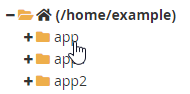
2. In the left hand column of File Manager, click the text of the application root folder:
3. Click **+File** to create a new file:

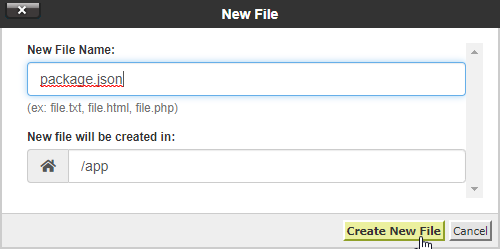
4. In the **New File** dialog box, type the filename **package.json**, and then click **Create New File**:
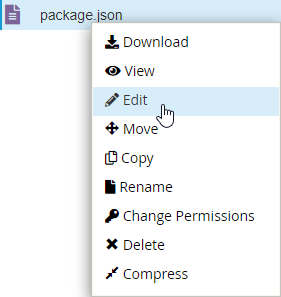
5. Right-click or secondary click on the *package.json* file in the right-hand column of File Manager and then click **Edit**. An edit dialog box appears:
6. In the **Edit** dialog box, click **OK**.
7. Type the following text in the editor screen:
```json theme={null}
{
"name": "app",
"version": "1.0.0",
"description": "My App",
"main": "app.js",
"scripts": {
"test": "echo \"Error: no test specified\" && exit 1"
},
"author": "",
"license": "ISC"
}
```
8. Click **Save Changes** to save the file:

9. Click **Close** to close the editor:

### Step #3: Install npm
To install npm, follow these steps:
1. On the **Tools** page, in the **Software** section, click **Setup Node.js App**:

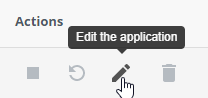
2. In the **Actions** column of the **Web Applications** list, click the pencil icon to edit the application:
3. Click **Run NPM Install**:

4. The NPM installation runs and displays a success indicator when complete:

5. To install packages with NPM and do other command line tasks related to the application, log in via SSH and enter the virtual environment for the application using the command shown in the information box at the top of the application setup page:

## Method #2: Setting up a Node.js application using the command line
Users familiar with SSH and the bash shell may find the command line process faster and easier than navigating the cPanel interface. To set up a node.js application from the command line, follow these steps:
1. Log in to your account using SSH.
2. Create the application with the following command:
```shell theme={null}
cloudlinux-selector create --json --interpreter nodejs --version 11 --app-root app --domain example.com --app-uri app
```
3. Change to the application directory:
```shell theme={null}
cd ~/app
```
4. Open the vi editor and create the *package.json* file:
```shell theme={null}
vi package.json
```
5. press **i** to change to insert mode and paste the following text into the editor:
```json theme={null}
{
"name": "app",
"version": "1.0.0",
"description": "My App",
"main": "app.js",
"scripts": {
"test": "echo \"Error: no test specified\" && exit 1"
},
"author": "",
"license": "ISC"
}
```
6. Press **escape** followed by **:** to enter command mode.
7. Press **x** followed by **Enter** to save and exit the editor.
8. To install npm, type the following command:
```shell theme={null}
cloudlinux-selector install-modules --json --interpreter nodejs --user example --app-root app
```
To install packages with npm and do other command-line tasks related to the application, log in using SSH, and then type the following command to enter the virtual environment for the application:
```shell theme={null}
source /home/example/nodevenv/app/11/bin/activate && cd /home/example/app
```
9. To control the running state of the application, do the following:
* To stop the application, type the following command:
```shell theme={null}
cloudlinux-selector stop --json --interpreter nodejs --app-root ~/app
```
* To start the application, type the following command:
```shell theme={null}
cloudlinux-selector start --json --interpreter nodejs --app-root ~/app
```
* To restart (stop and start in one step) the application, type the following command:
```shell theme={null}
cloudlinux-selector restart --json --interpreter nodejs --app-root ~/app
```