> ## Documentation Index
> Fetch the complete documentation index at: https://kb.verpex.com/llms.txt
> Use this file to discover all available pages before exploring further.
# How to Change Payment Method
If you wish to change your payment method for whatever reason like choosing the wrong payment method or not choosing a payment method at all, this can be changed using the process below
* Log into your client account
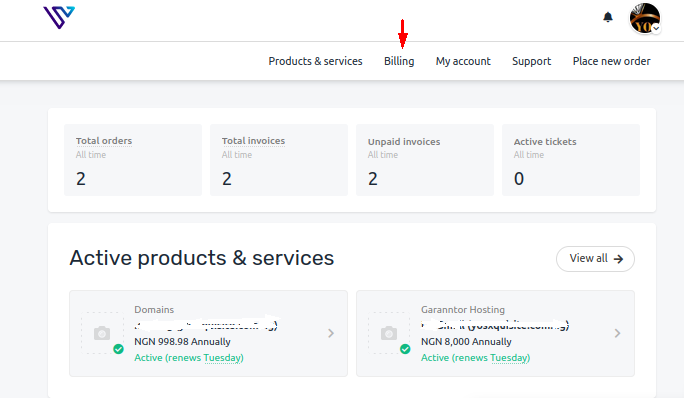
* Click **Billing** at the top of the page
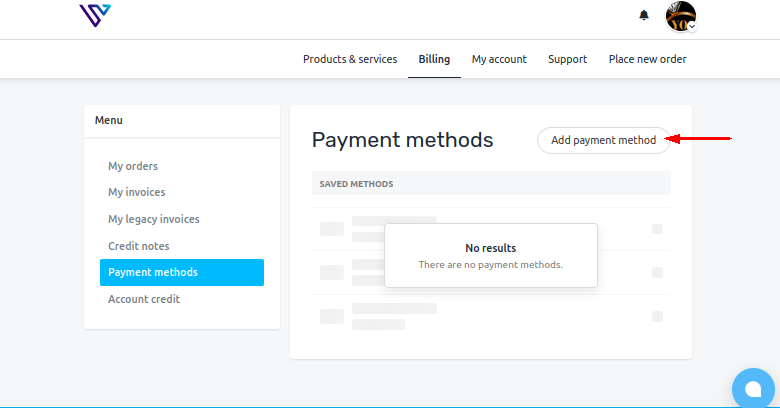
* If you are yet to choose any payment method, click **Add payment method**
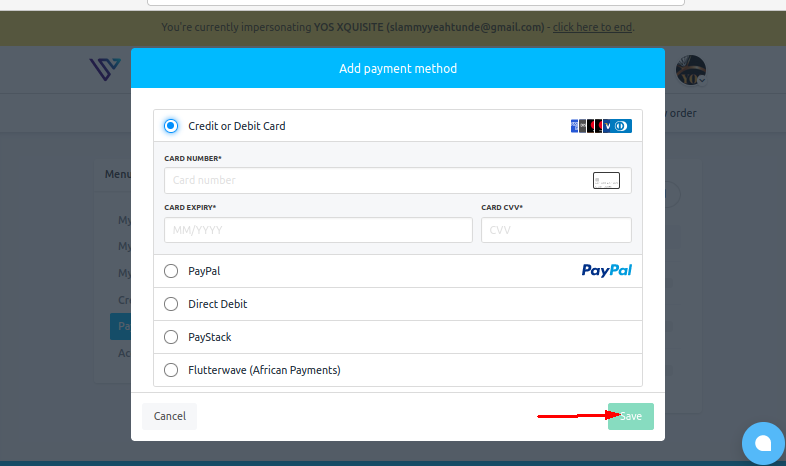
* Depending on the payment method, fill required details and **Save**
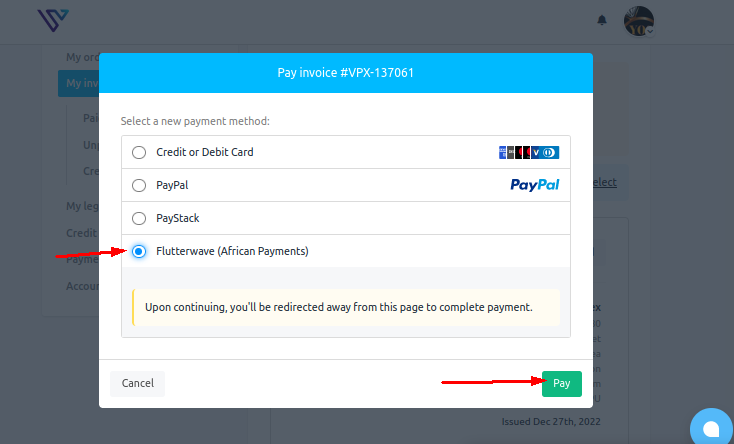
Please note that this payment method covers all unpaid invoices in your account. However, if you wish to temporarily use a payment method on an invoice, you can change the payment method for the specific invoice.
* Navigate to **My invoices** from **Billing**
* Go to the unpaid invoice you wish to change the payment method
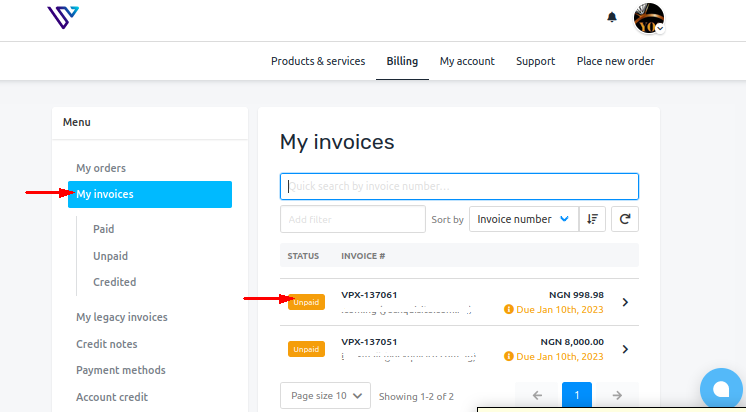
* Click **Pay Now**
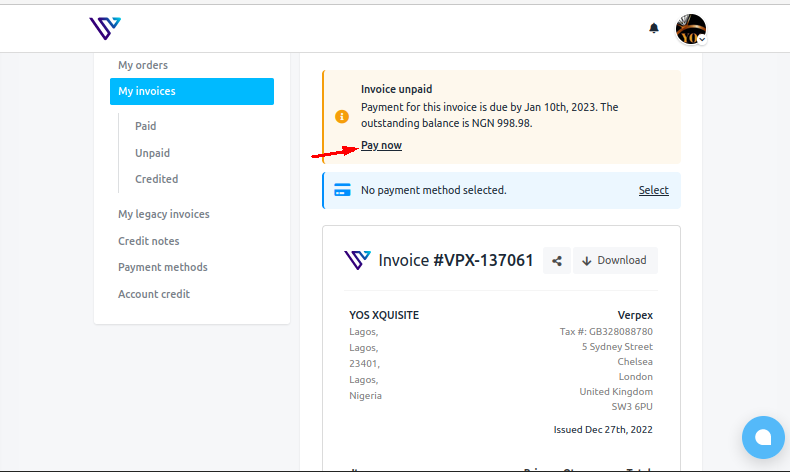
* Choose a payment method(in this scenario I chose Flutterwave) and proceed to make the payment